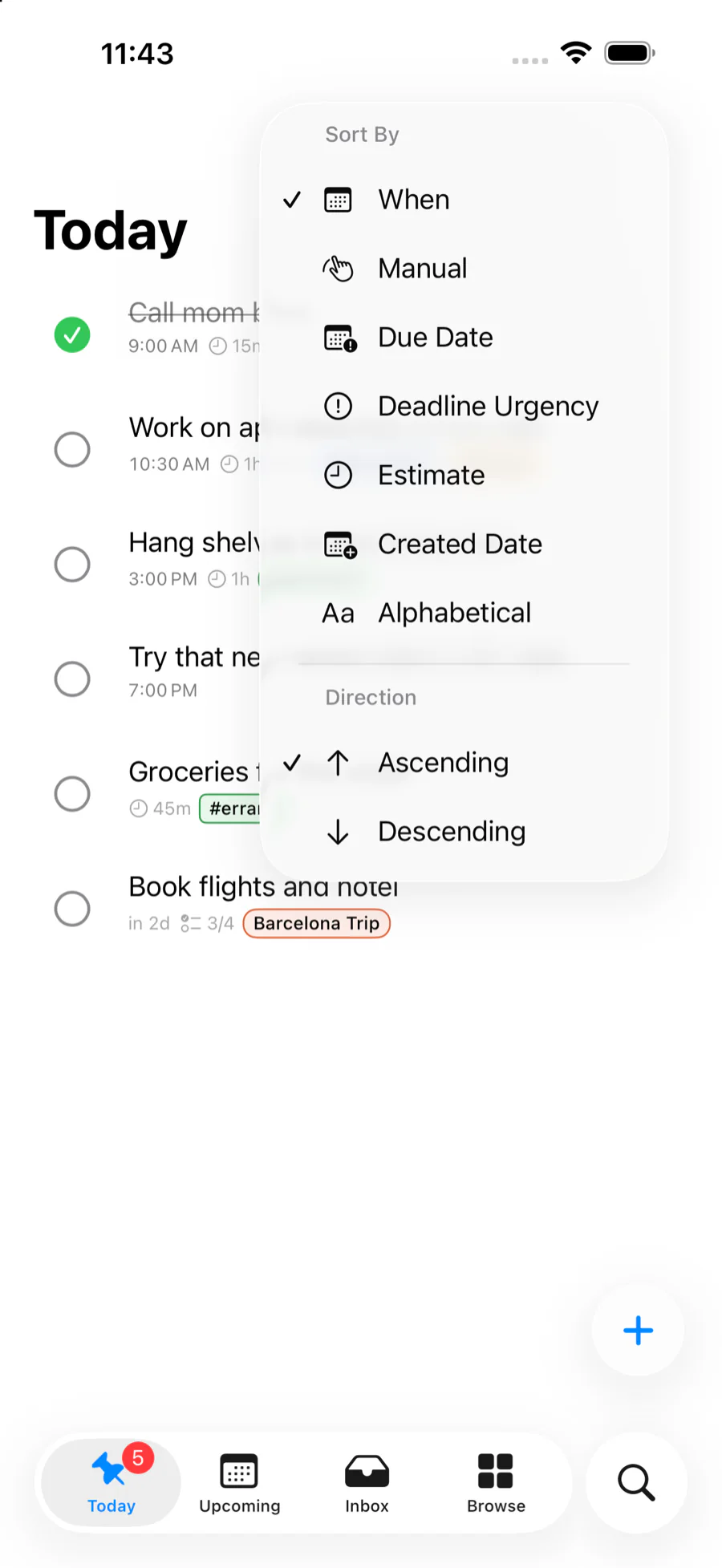
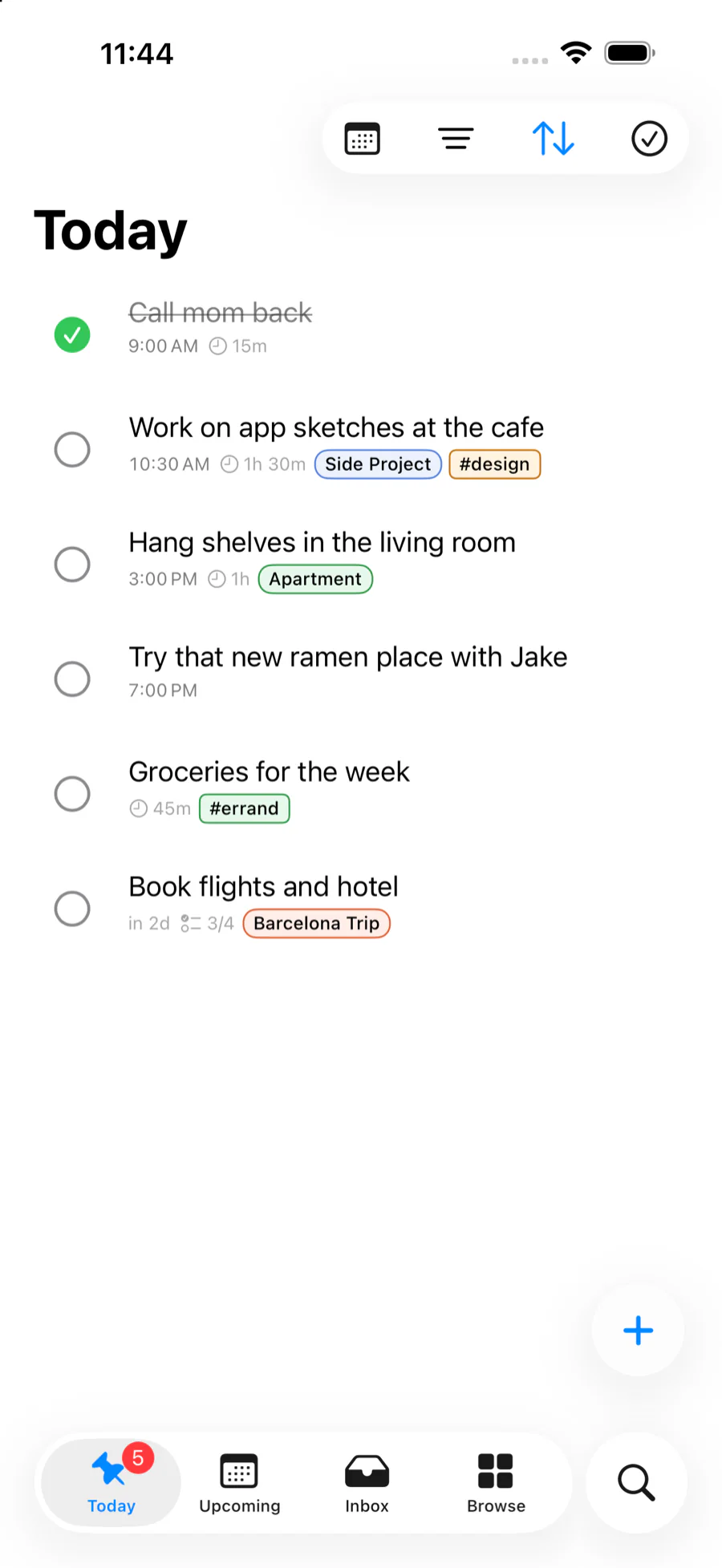
A daily list is easier to scan when fixed-time commitments appear before work that can happen whenever there is room. Choose the When sort in Pinwork to put tasks with a specific time first, in chronological order. Tasks scheduled for the day without a time follow them.
Today uses that order by default. Manual remains available when a list arranged by hand is more useful. Automatic orders also have a direction control. The list now answers the immediate question: what has to happen at a particular time, and what can fit around it?
Put timed tasks before flexible tasks
Consider a Today list with a 9:00 AM call, an untimed task to order printer paper, a 2:30 PM appointment, and an untimed report draft. A When sort produces the order the day needs:
- 9:00 AM call
- 2:30 PM appointment
- Order printer paper
- Draft report
The first group is chronological. The second group contains tasks with a When date but no time. Sorting this way does not add times to flexible tasks or pretend that every task belongs on a clock. It keeps commitments visible while leaving room for work that can happen between them.
When and Deadline remain separate. When says when the work belongs in the plan. Deadline says when it is actually due. A task planned for Tuesday can still have a Friday Deadline, and sorting by When keeps it with Tuesday’s work. The scheduling guide explains how those two dates behave.
Manual is the alternative when intentional hand-arranged order matters more than time. It does not replace When or Deadline. It simply preserves a different way to read the list. The direction control is useful when reviewing the same chronological information from the other end.
Filter a long list by the structure it already has
Sorting changes order. Filtering changes which tasks are visible. That distinction matters because a carefully sorted list can still be too long to answer a narrow question.
Pinwork tasks already hold fields such as estimate, recurrence, project, tags, status, When, and Deadline. List filters can use those fields to narrow the current view, while tag, project, and status pages remain useful destinations of their own. Pinwork shows only the filter choices that make sense for the list you are viewing.
| Need | Use | What remains visible |
|---|---|---|
| Shared context | Tag page | Tasks and projects with that tag |
| One body of work | Project | Tasks assigned to that project |
| Today, one project | Project filter | That project’s tasks in the date view |
| Work that fits a short gap | Estimate filter | Tasks within the chosen duration range |
| Repeating routines | Recurrence filter | Recurring tasks that match the other criteria |
| Finished record | Archive | Done and Canceled tasks |
Different filter groups work together. Selecting a project, a tag, and Has Due Date keeps tasks that satisfy all three groups. Selecting several tags or projects matches any selected item within that group.
Tags are useful when a label crosses dates or projects. A task or project can
have several tags, and a tag detail page shows the tasks and projects
associated with that tag. Tags can also be attached during natural-language
capture by writing # before the tag name. For example, Buy paint tomorrow #home #errands saves the labels without leaving those tokens in the title.
The tags guide covers assignment, normalization, and tag detail
pages.
Projects provide a stricter boundary. A project page already groups the tasks assigned to that project. The project option in the main list filter exposes that same boundary while looking at Today or Upcoming, so there is no need to leave the date-based plan just to isolate one project. A task keeps its normal When, Deadline, status, tags, and other fields when it belongs to a project. See the projects guide for how assignment and removal work.
Status has its own established list behavior. Not Started and In Progress are active states. Done and Canceled are terminal states that appear in Archive. Waiting and Someday/Maybe are available in the optional workflow mode described by the statuses guide. Archive is therefore the reliable way to isolate completed and canceled records without implying that every status is a generic filter-menu choice.
Estimate and recurrence work as both visible task fields and filter criteria. An estimate range can reduce a long list to work that fits the time available. A recurrence filter can isolate repeating routines for review. Recurrence still requires a When date: clearing that schedule also removes the recurrence rule.
Three practical recipes
The value of a filter becomes clearer when it answers a real planning question. These combinations keep the task list intact while reducing what needs attention.
Plan a tight morning
Open Today and use the When sort in its default direction. The 9:00 AM call and 11:30 AM pickup appear above untimed work, in chronological order. Read the timed group first, then decide which flexible tasks fit between those fixed points.
Do not add artificial times just to force an order. An untimed When date is useful information: the task belongs today, but it does not claim a specific slot.
Find quick wins
When only a small gap is available, filter Today by an estimate range, then sort by When. A mixed list quickly reduces to the calls, replies, or errands whose saved estimates genuinely fit before the next meeting.
This scan depends on estimates already saved on the tasks. Pinwork does not guess duration from the title or make an unestimated task look short. That makes the result narrower, but also more dependable.
Clean up a week without losing context
Start with a tag such as #client-a, then inspect the matching tasks for a
Deadline that has passed. If the Deadline includes a time, that time matters
too. Overdue describes the Deadline state, not a separate label, badge, or
status.
For each task, decide whether the Deadline is still real, the When date needs to move, or the task should change status. Keeping the tag in view prevents the cleanup from turning into a review of every unrelated task.
Expect context-specific choices
A sort is easier to trust when it keeps the same meaning wherever it appears. The available choices still depend on the list. Today, Upcoming, Inbox, All Tasks, Archive, Waiting For, Someday/Maybe, and project lists each show the orders that fit their purpose. Automatic sorts offer Ascending and Descending, while Manual gives you exact drag ordering when no filters are active.
Today defaults to When because a daily plan benefits most from seeing timed commitments first. In Upcoming, the grouping by day stays intact. Within each day, tasks with explicit times appear chronologically before untimed tasks. Dragging a task onto another Upcoming day still changes its When date, and an explicit time stays attached during that move.
A project list starts with a different boundary: only tasks assigned to that project belong there. Within that boundary, When sorting follows the same timed-first rule. This keeps the meaning of the control stable without mixing project membership with scheduling.
The project filter solves the opposite problem. It begins with a date-based list, such as Today, then narrows it to one project. The project page and project filter can show similar tasks, but they answer different questions: everything in the project, or only that project’s work in the current date view.
Pinwork remembers filters, sort order, and direction separately for each main list and project on the current device. These are presentation preferences, not task data, so changing them does not alter a task or sync the view setup through iCloud.
Let the list support the decision
Sorting cannot decide what deserves attention. A task with an early time may be fixed, or it may simply have been scheduled too aggressively. An untimed task may be more important than everything above it. A Deadline that has passed may need renegotiation rather than another date.
The controls work well when the fields carry deliberate meaning. Use When for the plan, Deadline for a real due point, estimates for plausible duration, tags for context that crosses lists, and projects for a defined body of work. Then use sorting and filtering to expose the part of that structure needed now.
For a broader planning routine, continue with how to plan any day from Today. It shows how to move from a sorted list to a day that reflects what can actually be done.