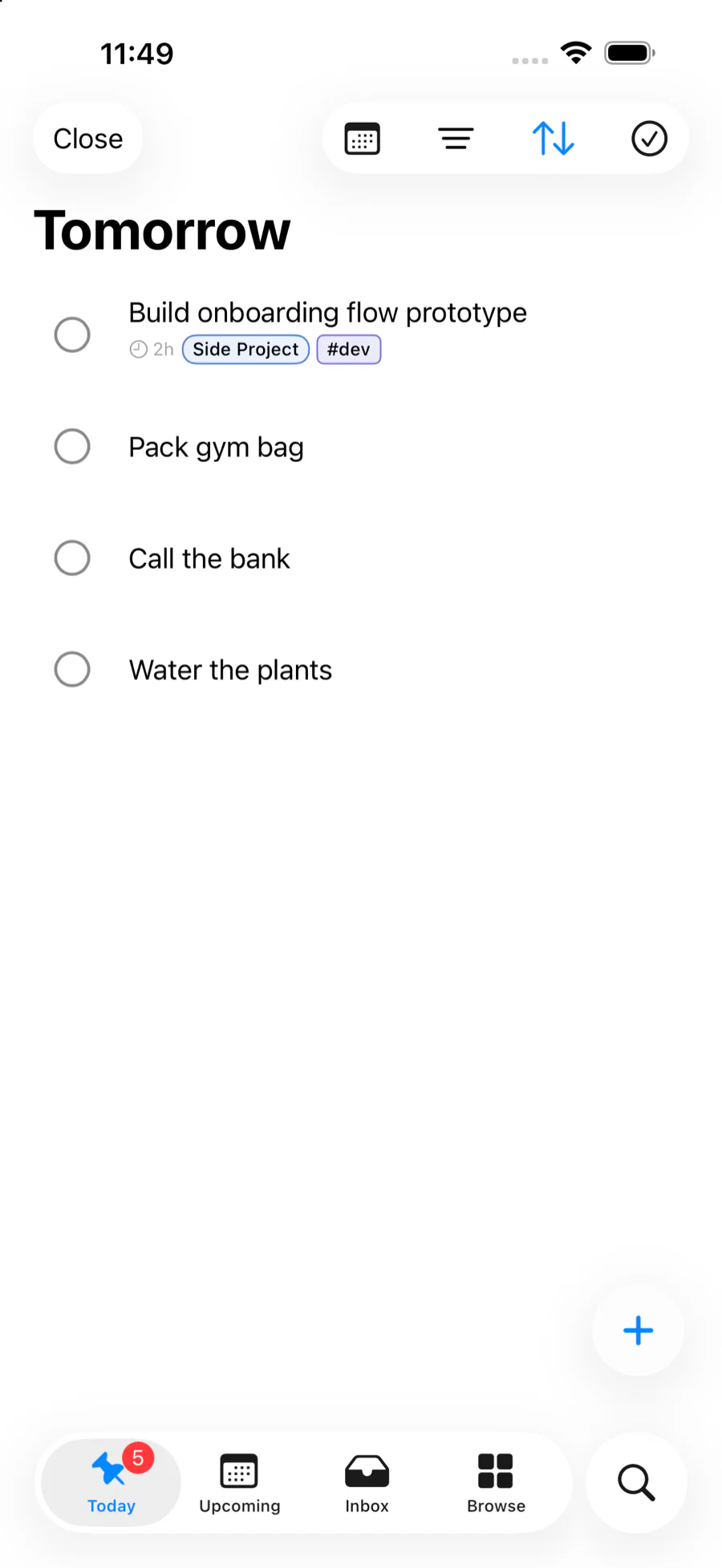
Planning Thursday should not require turning Thursday into Today. From the Today view, tap the Today title, choose Thursday in the calendar picker, and work with that date directly. Pinwork shows the tasks scheduled for Thursday, plus any lightweight recurring previews for that future date. Any task created while browsing is scheduled for Thursday too.
When the plan is ready, select Close. That returns to the real Today view, where today’s tasks and unfinished overdue work stay together.
Plan another day in three steps
The whole workflow stays inside Today:
- Tap the Today title and choose a date from the calendar picker.
- Review the work shown for that date, then add anything missing.
- Select Close when the date no longer needs attention.
The selected date can be in the future or the past. It temporarily changes which day the view represents. It does not change the meaning of Today or reschedule tasks merely because another date is open.
That makes the date picker useful for small planning questions. What is already scheduled for Friday? Is next Monday overloaded? What was supposed to happen last Wednesday? Each question can be answered without dragging tasks through Upcoming or repeatedly editing date fields.
Why Today is different
Today is the working list for the current day. It includes tasks scheduled for today and unfinished overdue tasks that still need attention.
That carry-forward behavior matters. A task planned for yesterday should not vanish from the daily plan simply because midnight passed. Today keeps the unfinished work visible so it can be completed, rescheduled, or reconsidered.
Every other date has a narrower job. When Thursday is selected, the view shows tasks scheduled for Thursday. It does not pull earlier overdue work into Thursday. When yesterday is selected, it shows tasks scheduled for yesterday rather than reconstructing the broader working list that Today showed on that date.
The distinction is easier to remember this way:
| View | Scope | Purpose |
|---|---|---|
| Today | Today plus overdue tasks | Work from the current plan |
| Another date | That exact date, plus recurring previews on future dates | Inspect or prepare one day |
This behavior follows Pinwork’s scheduling model. A task’s When date is the day you plan to work on it, so When determines which scheduled view contains the task. Deadline is the last acceptable date to finish it. The When and Deadline explainer covers that separation in more detail.
For example, a tax task can have a When date of Tuesday and a Deadline of Friday. Browsing Tuesday shows the task because Tuesday is the plan. The Friday Deadline still records when the result is actually due.
Plan a future day
Suppose a meeting next Thursday will produce three follow-up tasks. Open Today, tap its title, and select next Thursday. The view now shows the work already scheduled for that day.
Add the missing follow-up tasks while Thursday is selected. Each new task gets Thursday as its When date, so there is no separate pass through a date picker for every task. The tasks join the day being planned rather than today’s working list.
This is useful when the date is the context for capture. A travel day, a quarterly review, or the first morning after a holiday can be planned as a day, one task at a time. The selected date stays visible, which reduces the chance of adding work to the wrong day. Planning a whole week at once is a separate pass, and the weekly review checklist runs through it step by step.
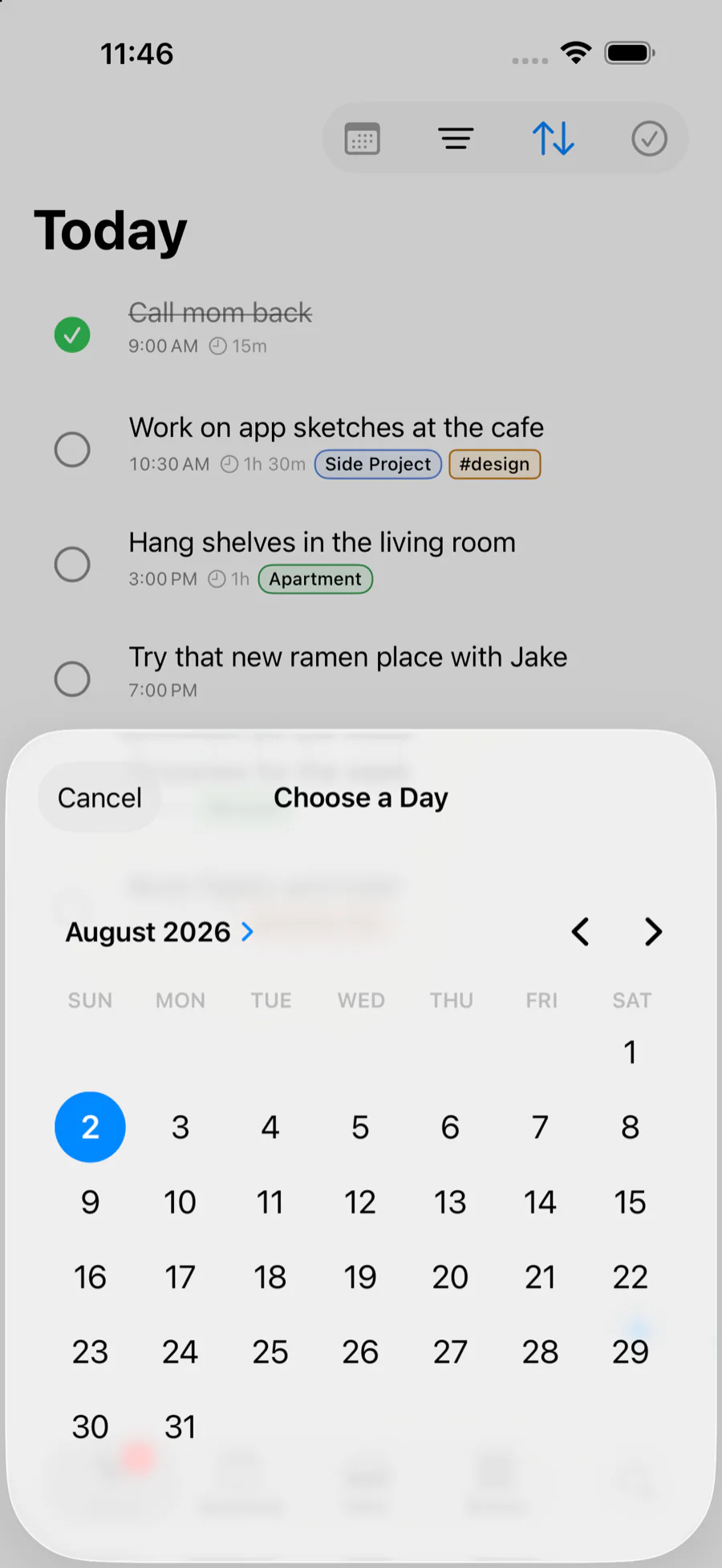
Recurring work needs a little more care. A future selected date can show lightweight previews calculated from a recurring series. A preview is not a saved task, and browsing it does not create, complete, or advance an occurrence.
Review a past day
The same calendar picker can open a date that has already passed. Select the date and Pinwork narrows the view to tasks scheduled for that day.
This is useful when the question is about the plan rather than the current queue. A task with last Tuesday as its When date belongs in last Tuesday’s date view. If it remains unfinished and overdue, it also appears in the real Today view, where it can be acted on now.
Keep the scope of the past-date view in mind. It answers, “What was scheduled for this date?” It is not a report of everything that happened that day. Planning by date and auditing task history are different jobs.
New tasks created while a past date is selected receive that selected date as their When date, just as they do for a future date. That can record work that belonged to the earlier plan, but it also means the selected date should be checked before adding a task.
Return to the current plan
While another date is open, Close remains visible. Select it to leave the exact-date view and return to the current working list.
The overdue tasks that were deliberately absent from the other date are visible again in Today. Browsing did not move anything, and only the tasks deliberately created for the selected date received a new When date.
That is the full mental model: Today carries current and overdue work, while a chosen date shows its own scheduled work and any recurring previews for that future date. Use the date picker to inspect and prepare one day, then select Close to resume the current plan.
For changing an existing task’s When date, adding a separate Deadline, or setting recurrence, continue with the scheduling guide.