For a to-do app, native means more than having an iPhone version in the App Store. It means the app works with what the iPhone, the Mac, and the Watch already do: capturing a task from Siri or the Action Button without opening the app, giving a task time in Apple Calendar, bringing over a list from Apple Reminders, and running as a proper Mac app and a proper Apple Watch app instead of the phone layout stretched or shrunk to fit.
Pinwork does all of that. Below is what each part does, what access it asks for, and where it stops.
Can you add a task from Siri, the Action Button, or Shortcuts without opening the app?
Yes. Pinwork registers four App Shortcuts: Quick Add, Today, Inbox, and Upcoming. They show up in Siri, in the Shortcuts app, and in Spotlight, and on a supported iPhone you can assign Quick Add to the Action Button under Settings, Action Button, Shortcut.
Press the Action Button, then type or dictate the task. The shortcut captures the sentence without opening Pinwork. The task is created when the main app next processes the request. Open Pinwork if it has not appeared yet.
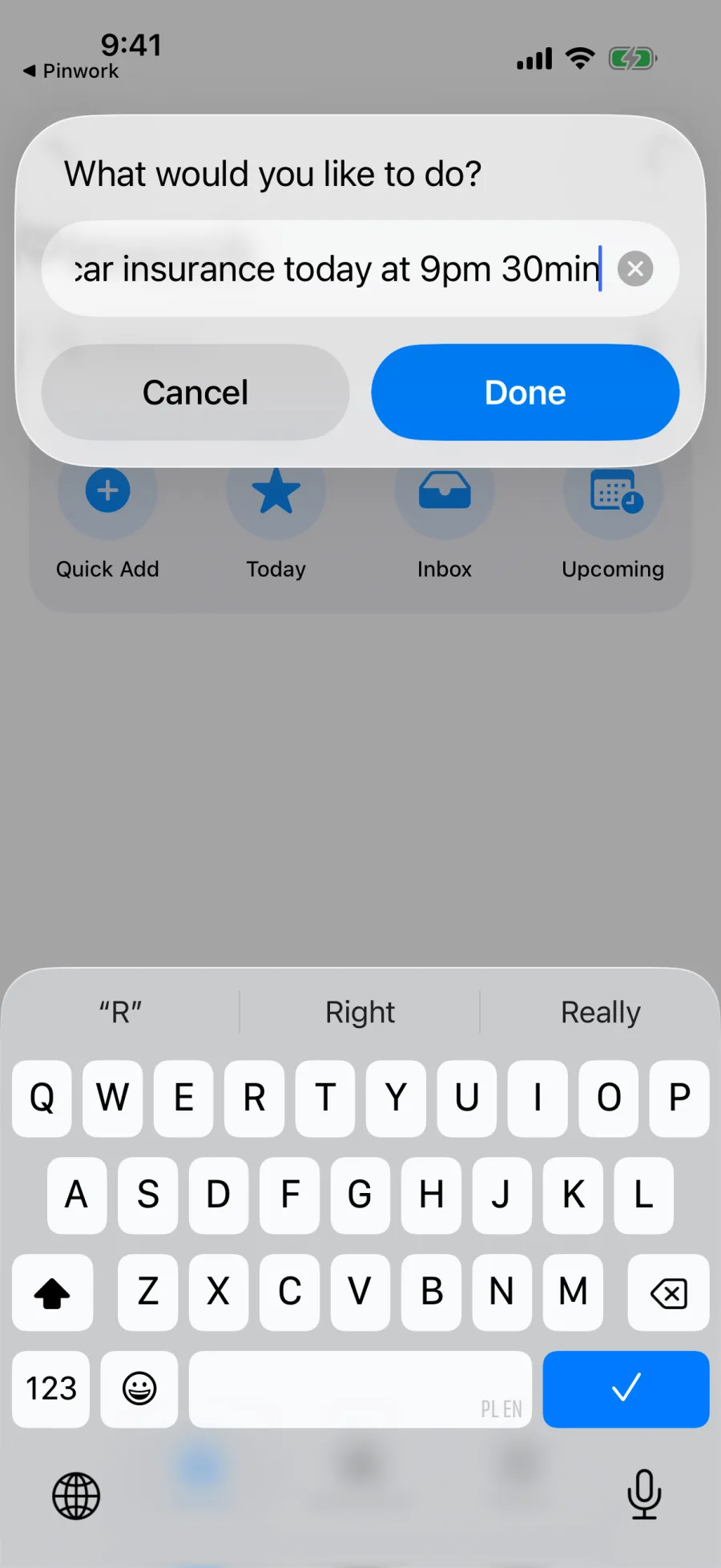
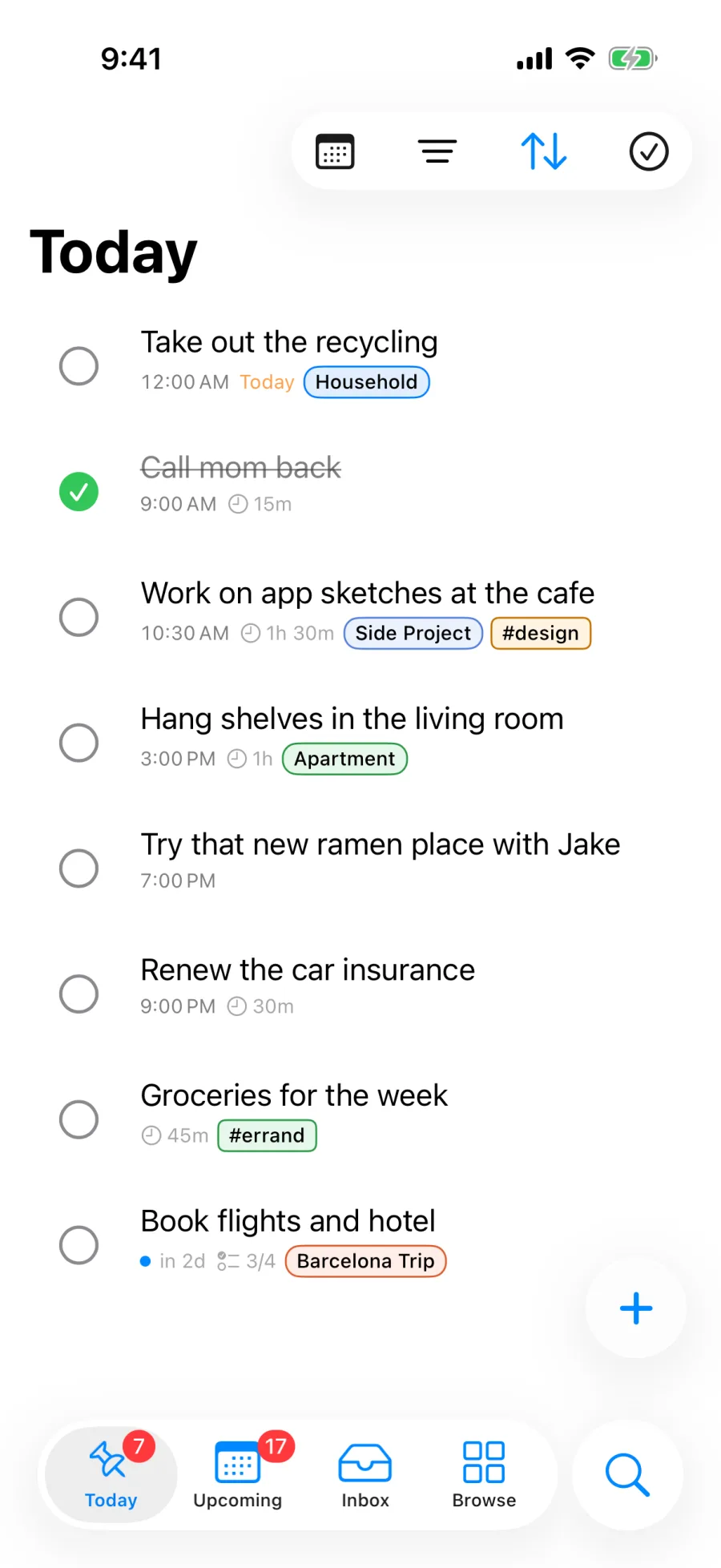
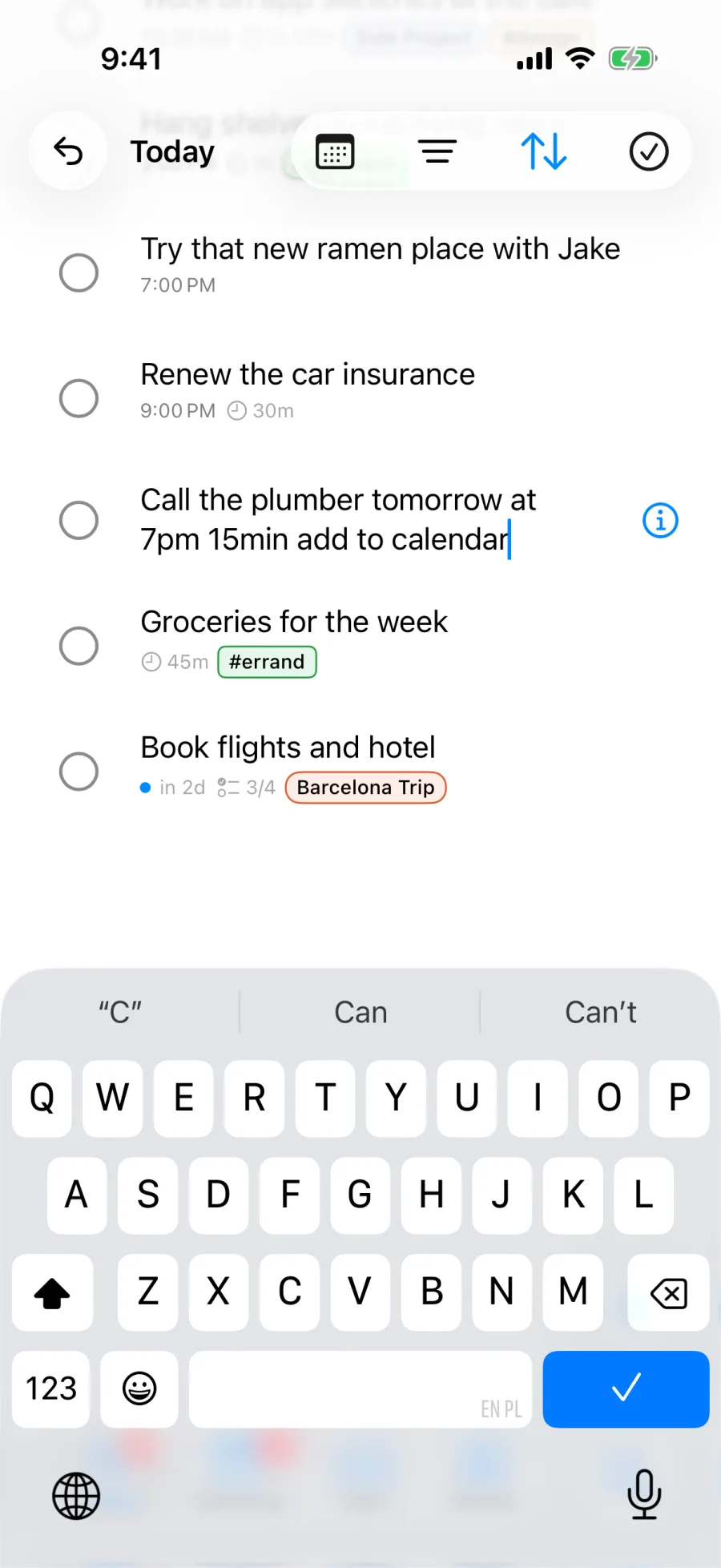
A task captured this way goes through the same sentence parsing when Pinwork processes the request. Dates, recurrence, estimates, tags, projects, and an Add to Calendar instruction are pulled out of the sentence, and whatever is left becomes the title. If Pinwork cannot make sense of the sentence, it saves the whole text as the title.
In the Shortcuts app, Quick Add can also be a step in a personal automation, and a separate Complete Task action picks any unfinished Pinwork task. Both need active Pinwork access. Without it, Quick Add stops and says “Open Pinwork to restore access before adding tasks.”
What can a to-do app widget do without opening the app?
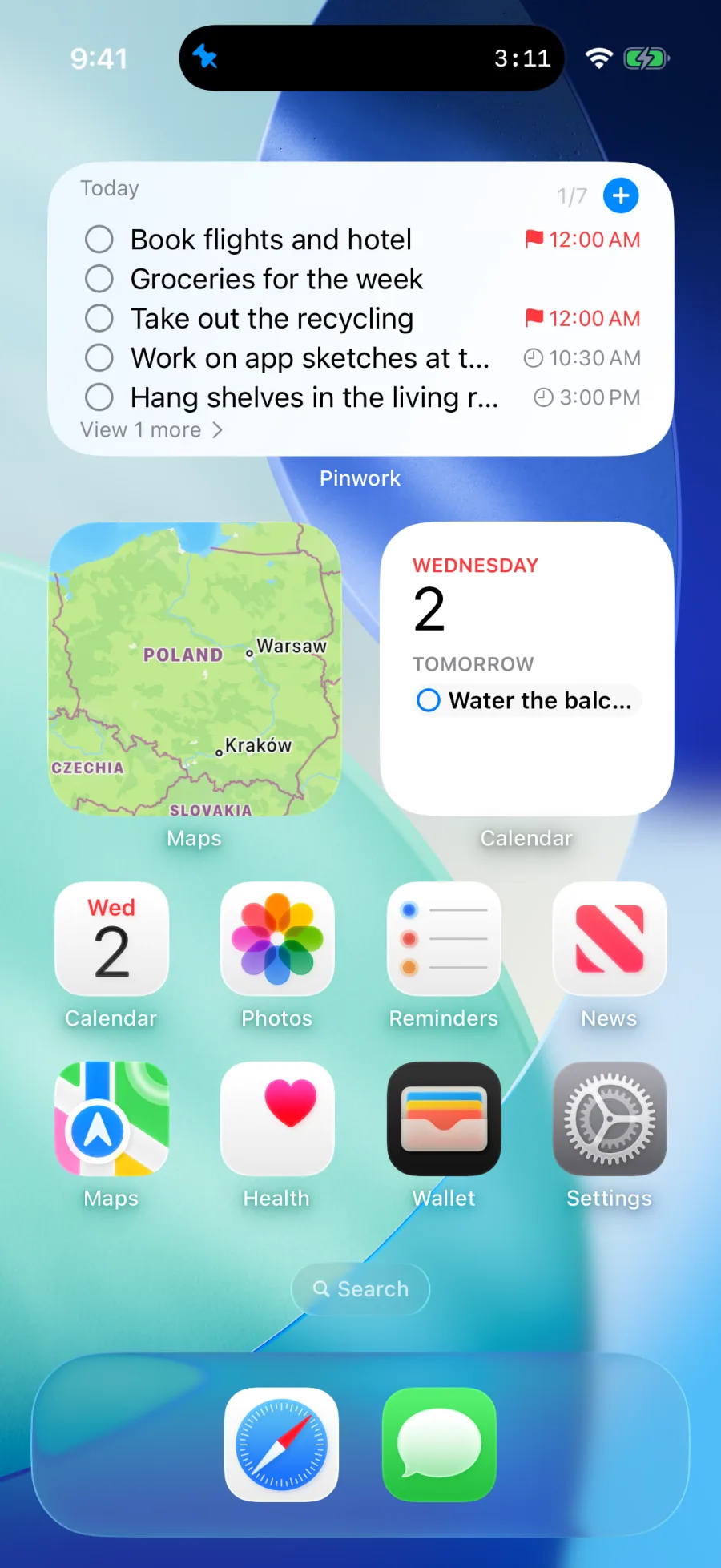
Quite a lot, depending on the size. The Task Progress widget runs on iPhone, iPad, and Mac. Its medium, large, and extra-large sizes list the day’s tasks, and you can complete or restore a task right there in the widget. The Lock Screen versions keep to a compact summary and do not offer that. Tapping the widget’s header opens Quick Add in the app.
On iPhone and iPad there are also controls for Quick Add, Today, Inbox, and Upcoming. They go in Control Center or any other place iOS lets you put a control, and each one opens Pinwork at that view.
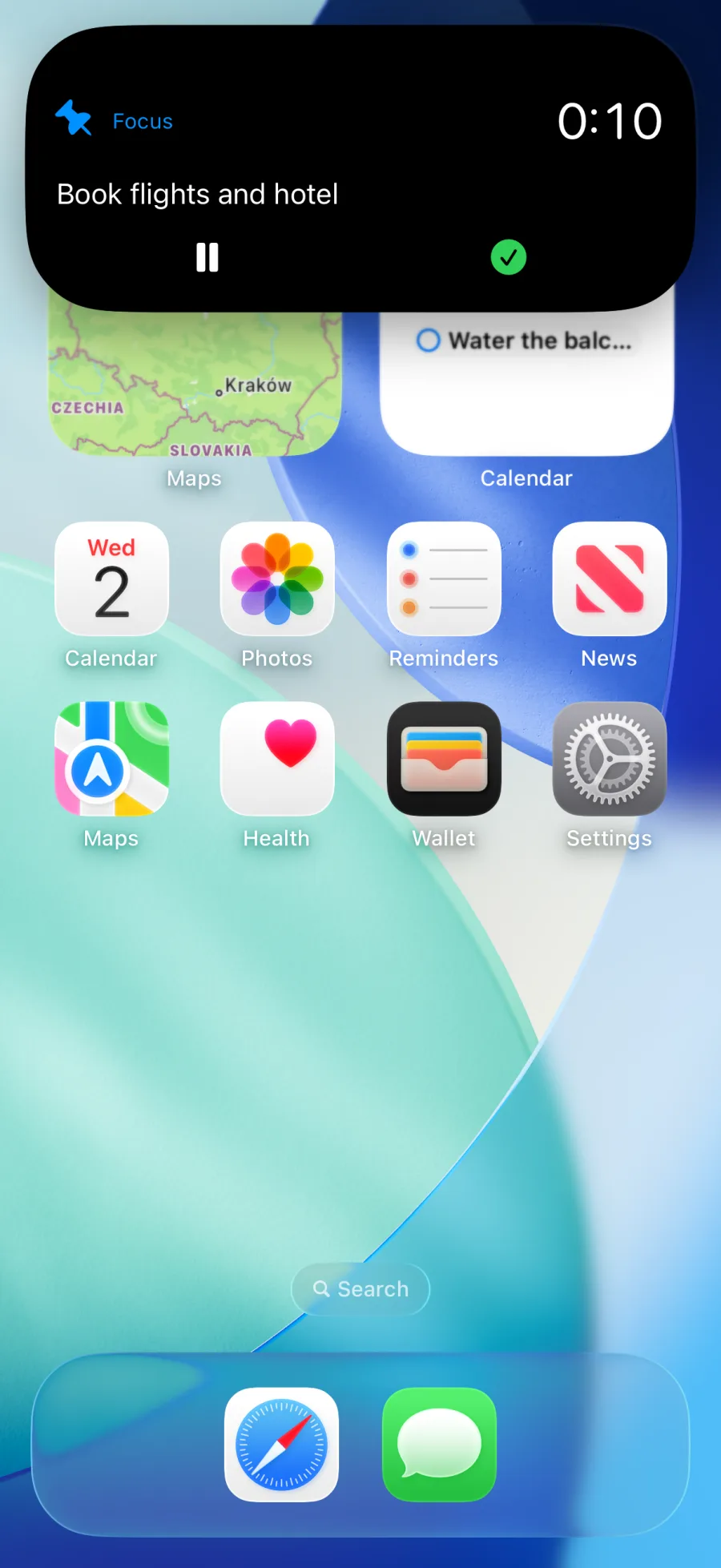
While a Focus session is running, its timer appears on the Lock Screen and in the Dynamic Island as a Live Activity. Pause, resume, and complete sit next to it on the Lock Screen and in the expanded Dynamic Island. The one thing missing there is ending the session without completing the task, which is a control on the Apple Watch timer.
Can a to-do app create an Apple Calendar event from a task automatically?
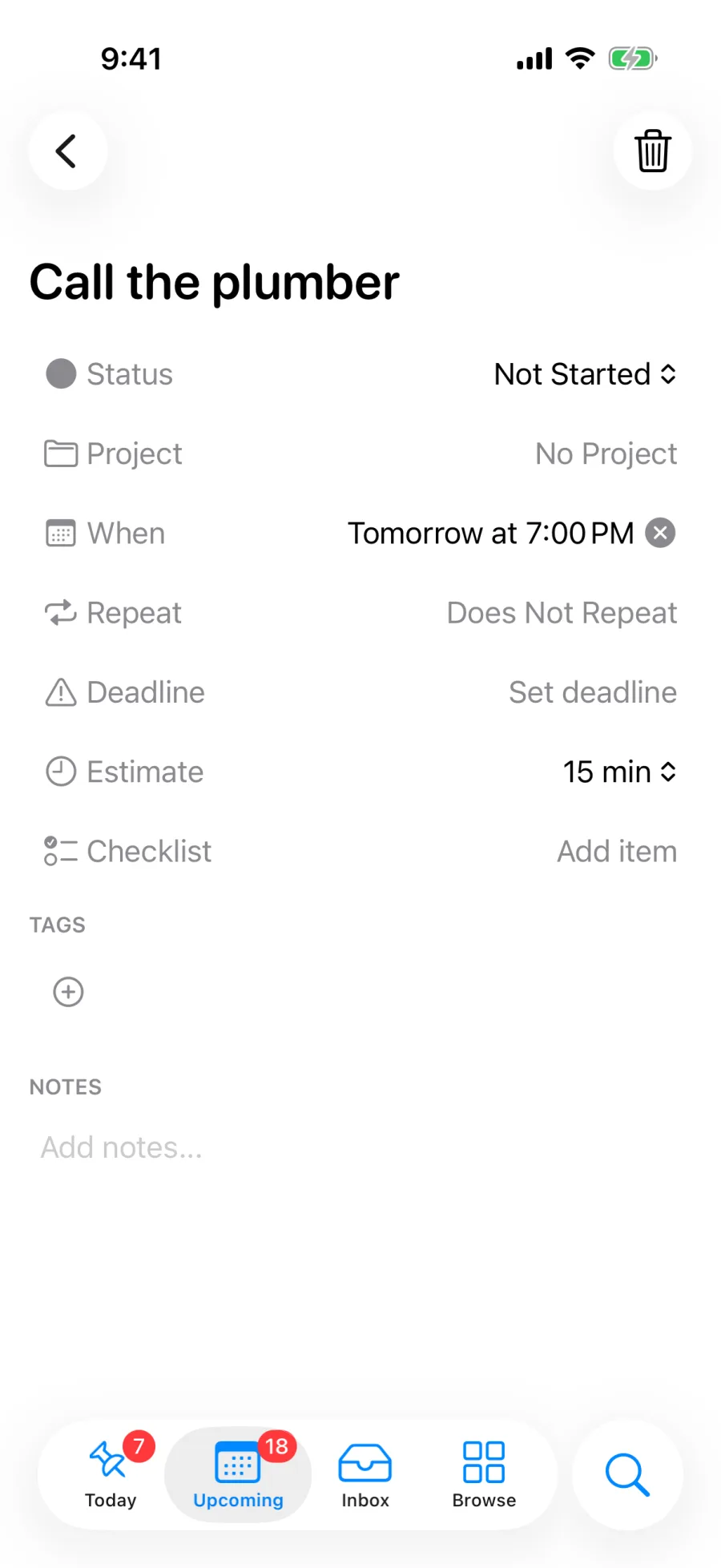
With automatic Calendar scheduling on, a task gets its own event in Apple Calendar when it is created with a When date or when a When date is added later. You can also link a task by hand at any time, and a task with no When date then gets an event starting now.
The task and the event stay two separate things. The task says what needs doing. The event reserves time for it, and Pinwork builds it from the task like this:
- The event title is the task title.
- A When date with a time sets the start. The estimate sets the length, so a 15-minute task becomes a 15-minute event, and a task with no estimate gets an hour.
- A When date without a time becomes an all-day event.
- If an unfinished task’s When date is already in the past, the event moves to today and keeps its time of day.
- The Deadline stays as it is. Reserving time never moves the real cutoff.
The same instruction can be typed into the capture sentence, which adding a task to Apple Calendar while creating it covers in full.
After that the two stay linked. With full Calendar access, edits go both ways: change the task in Pinwork and the event updates, rename the event or edit its notes in Calendar and the task picks that up. A new start time or length only comes back if the task already has a When date, and a new length only from a timed event. If both sides changed before Pinwork reconciled them, the task wins. With write-only access Pinwork can create events but not update them afterwards. It asks for the access level it needs before reading or writing anything and works within whatever you grant.
A recurring task gets one event, for the current occurrence. Pinwork does not fill your calendar with months of repeats. The repeat rule lives on the task, and completing one occurrence creates the next.
Can you bring an Apple Reminders list into another to-do app?
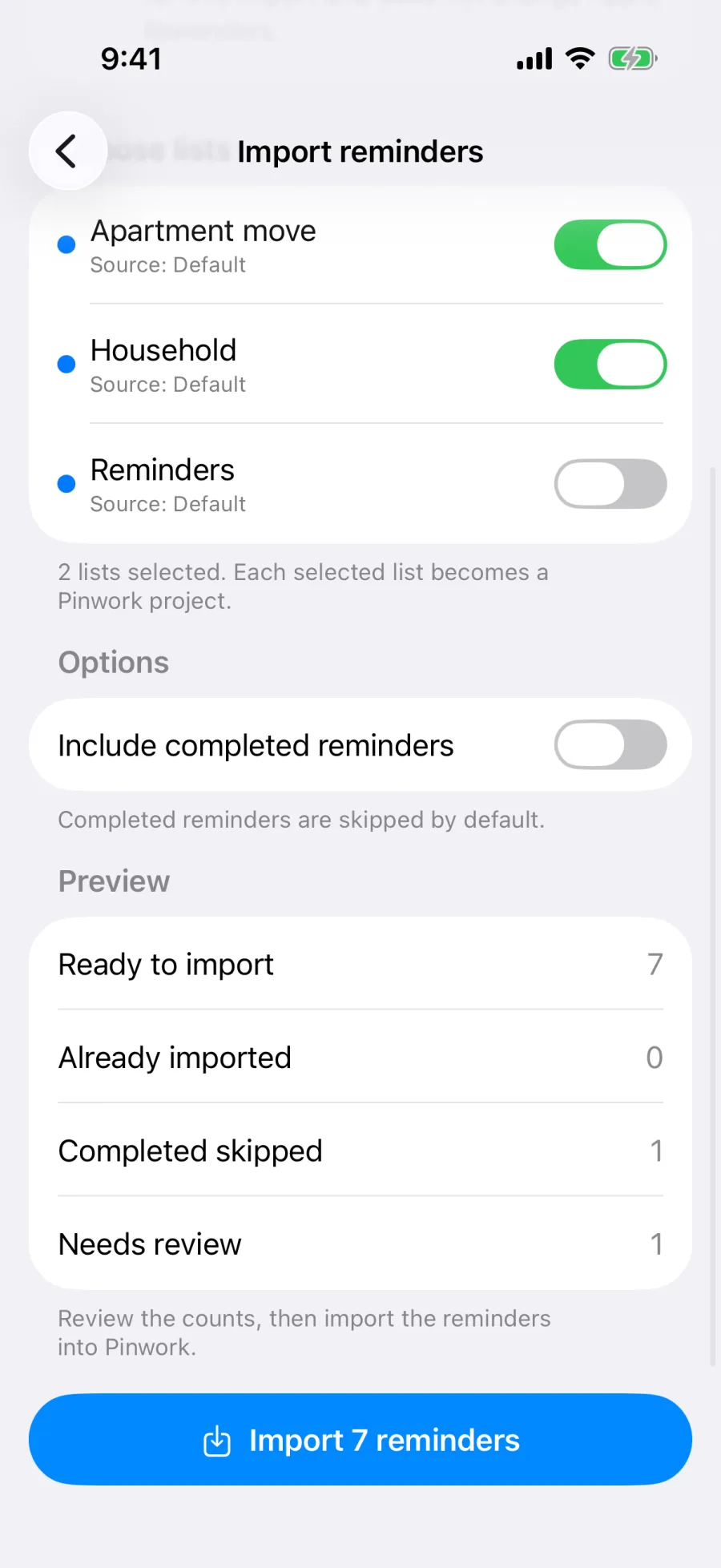
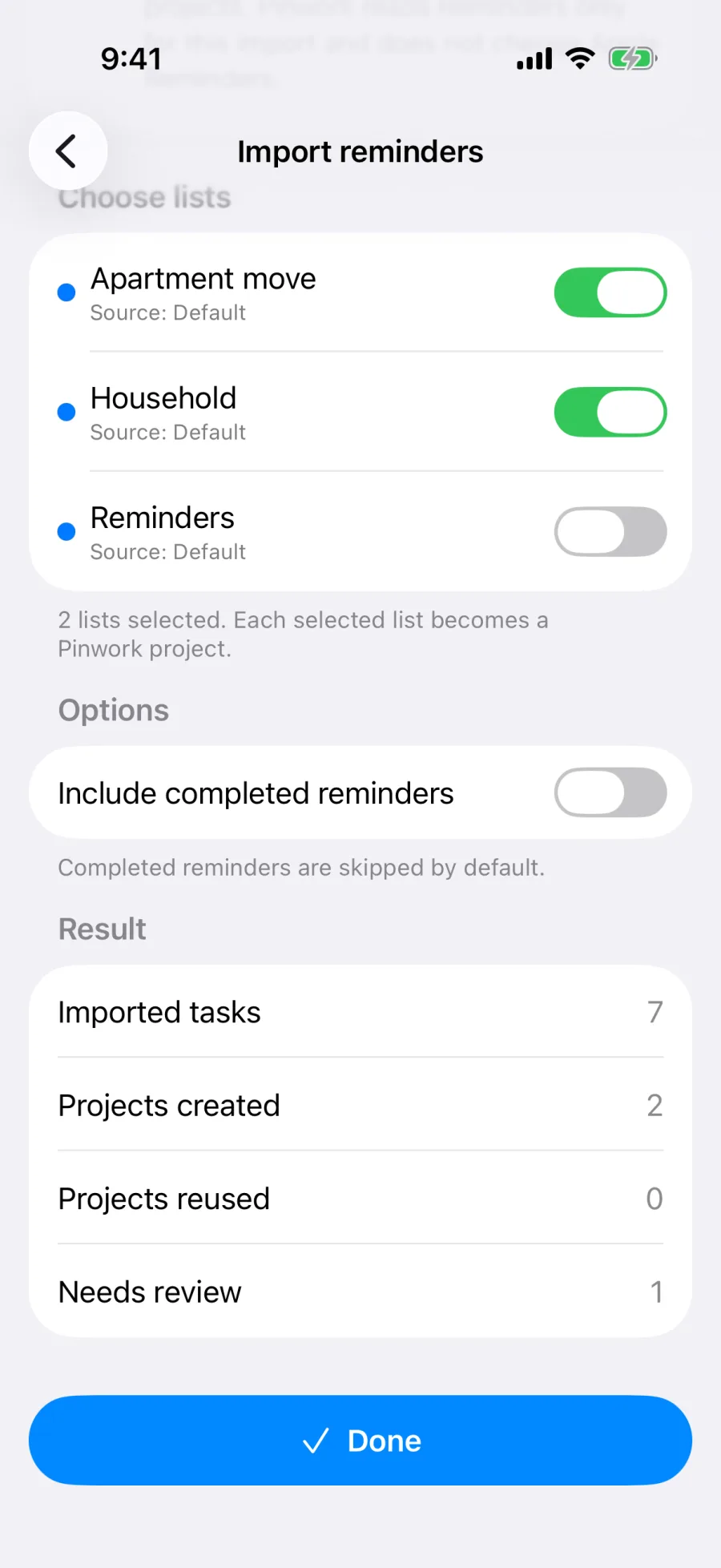
Pinwork has a one-way import from Apple Reminders. On iPhone and iPad it is in Settings as Import from Apple Reminders. On Mac it is the Import button next to Reminders lists in Settings. You pick the lists, and each list that has something to import becomes a Pinwork project. If an active or on-hold project with the same name already exists, Pinwork uses that one instead of creating a duplicate.
Each reminder comes over with its title and notes. A start date becomes the When date and a due date becomes the Deadline. Completed reminders come along, with their completion information, only if you ask for them. A repeat rule is kept when Pinwork has a clear equivalent for it.
The importer needs full Reminders access, but it only reads. Nothing is written back to Reminders, so your lists there stay exactly as they were.
Before anything is written you get a preview with five counts: Ready to import, Already imported, Completed skipped, Needs review, and Skipped. Needs review is part of Ready to import rather than a separate pile, so those reminders still come across. Anything Pinwork recognizes from an earlier import is skipped, and so are completed reminders unless you include them.
One reason a reminder ends up in Needs review is a repeat rule more complicated than anything Pinwork can express. Rather than picking a close-enough rule, Pinwork imports the task without a repeat and adds a note saying the recurrence needs a look. Importing Apple Reminders walks through a full run.
What makes a Mac to-do app native rather than a stretched phone app?
The things a Mac app is supposed to have. Pinwork for Mac is its own macOS build with a sidebar, real menus in the menu bar, keyboard shortcuts, resizable windows, and Mac widgets.
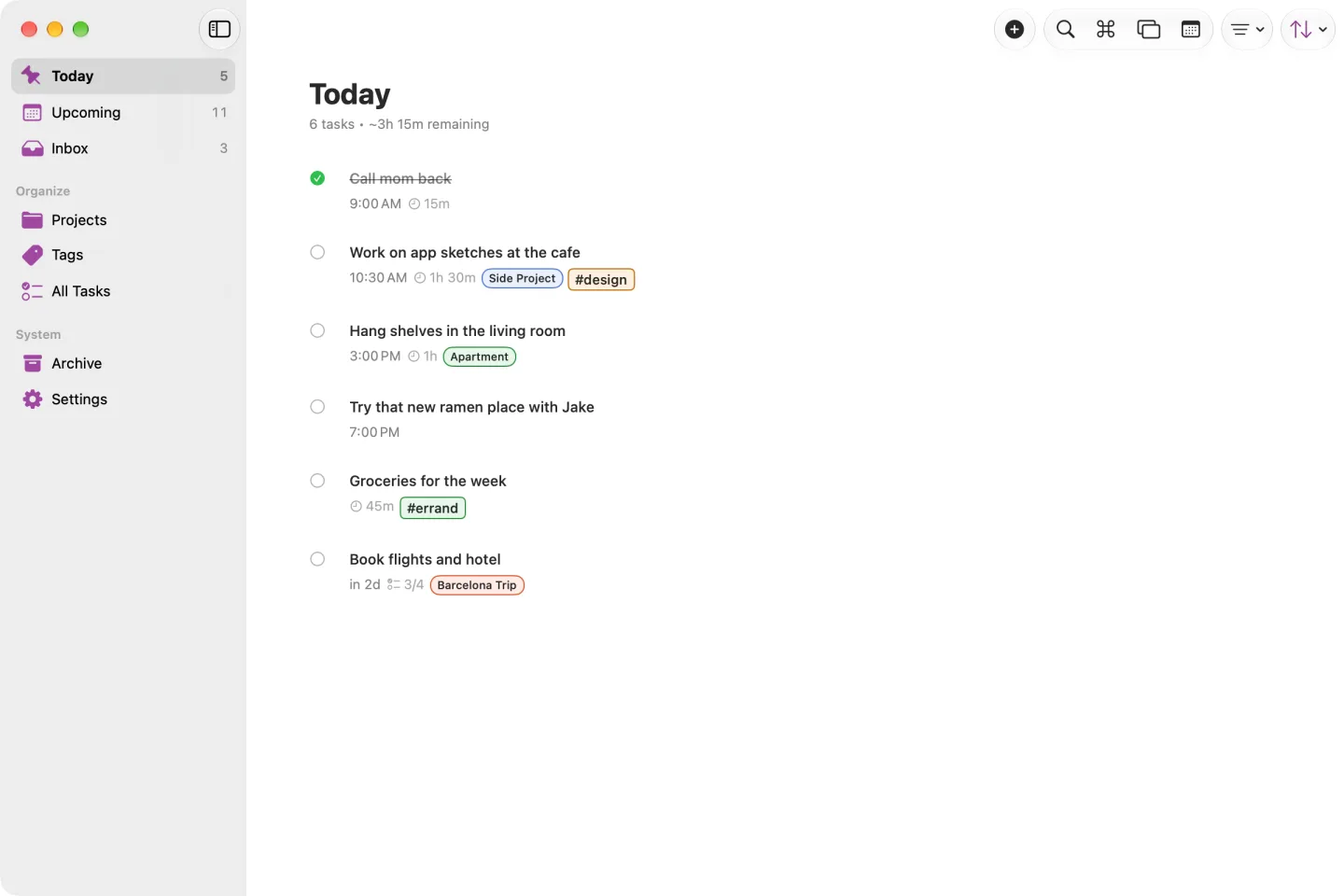
For the quick stuff there is a menu-bar panel. Add a task, glance at Today or Inbox, or mark something done without bringing the main window forward.
For longer planning there is keyboard navigation and a Command Palette on ⌘K. Tasks, projects, and tags can each open in their own window, so a task can sit next to the document or message it belongs to.
And for anything you would rather script, Pinwork has AppleScript commands for quick add, searching tasks, completing, deferring, rescheduling, and archiving.
What can an Apple Watch to-do app do on its own?
Enough for the moments when the phone is in another room. The Watch app has Today, Inbox, and Upcoming. You can add a task by dictation or typing, open a task, rename it, complete or restore it, push it to tomorrow, or pull it back to Today.
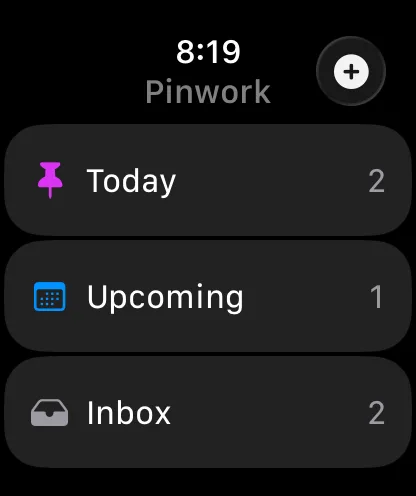
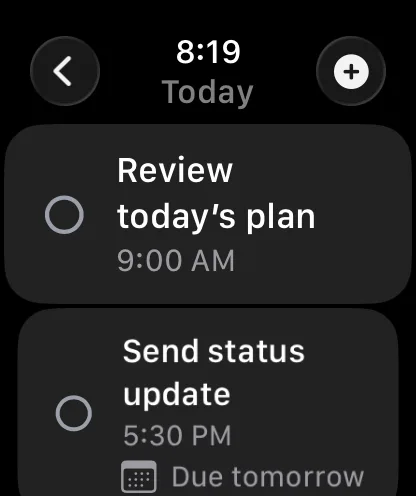
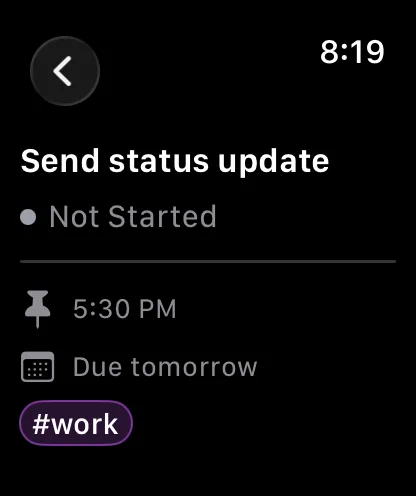
A running Focus session shows its timer on the Watch as well, where it can be paused, resumed, ended, or finished by completing the task.
The Watch app keeps its own copy of your tasks and syncs through your private iCloud, with a direct phone-to-Watch channel on top so actions cross over quickly. It is a real app on the Watch, not a mirror of iPhone notifications. What it does not do is manage projects or Calendar links. Those stay on the bigger screens.
The same task on each device
Put together, this is which part of Pinwork picks up the task in each situation.
| Situation | Where | What happens |
|---|---|---|
| A task comes to mind | Quick Add, Siri, or the Action Button | Capture dates, repeat, estimate, tags, and project; Siri and Action Button requests are parsed when the main app processes them |
| The day needs planning | iPhone, iPad, or Mac | Structure gets added and the work gets a When date |
| A quick check is enough | Home Screen, Lock Screen, or Mac widget | Progress at a glance, and the larger sizes complete a task in place |
| The work needs a time slot | Apple Calendar | The task gets a linked event |
| A list is moving over from Reminders | Import from Apple Reminders | Each list with something to import becomes a project |
| Something else has the Mac’s screen | Mac menu bar | Add or complete a task without bringing the main window forward |
| The phone is out of reach | Apple Watch | Capture, complete, defer, and Focus controls |
Does one plan cover iPhone, iPad, Mac, and Apple Watch without a separate account?
One purchase, and nothing to sign up for. Tasks live on the device and sync through the private CloudKit database that belongs to your iCloud account, so there is no Pinwork login and no Pinwork sync account to set up. Calendar and Reminders are separate system services and ask for their own permissions.
You buy through the App Store. A monthly subscription, a yearly subscription, or the lifetime purchase covers the iPhone, iPad, and Mac apps and the companion Watch app for the Apple Account that made the purchase. Pinwork uses RevenueCat to load the App Store products and turn the verified purchase into access. Buying Pinwork once has the details.