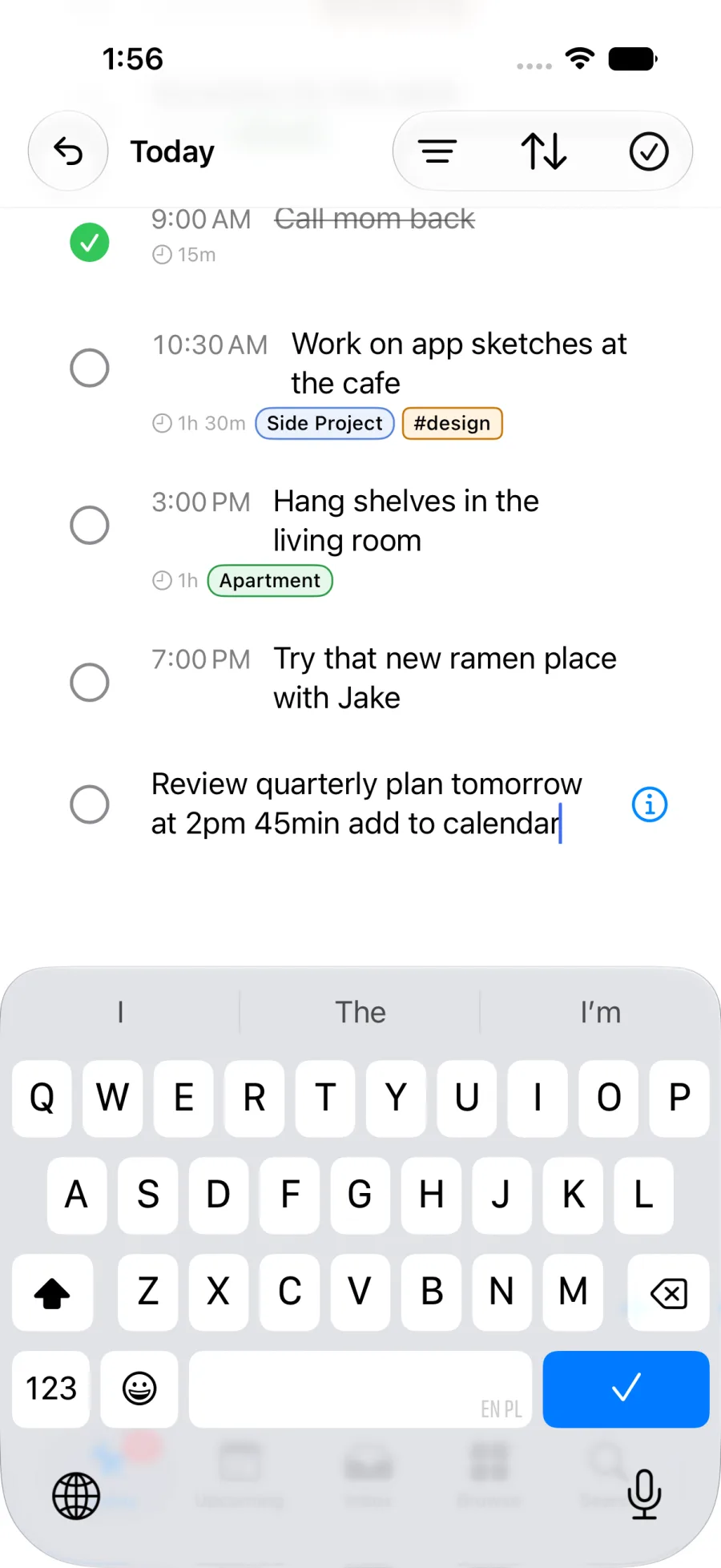
When a task needs a place in the day, type the task, its schedule, and add to calendar in Pinwork Quick Add. For example, Review quarterly plan tomorrow at 2pm 45min add to calendar creates the task and, when Calendar access is
available, a linked Apple Calendar event for that task occurrence in the same
capture step.
The date and time set the task’s When, the estimate sets the event duration, and the Calendar command requests the linked event. A recurring task still creates an event only for the current occurrence. It does not create a recurring Calendar series.
Date Time Estimate Calendar
Create the task and Calendar event in one step. Try the same sentence in Pinwork.
Use a capture field that parses the command
The command works in supported natural-language capture paths. In-app Quick Add
and Mac menu bar Quick Add are the most direct places to type a sentence that
contains a date, time, estimate, and Calendar instruction. The iPhone
scheduling sheet, Apple Pencil and Scribble capture, pinwork://quickadd,
AppleScript quick add, and supported title-editing paths also parse natural
language, with limits depending on the path.
Accepted Calendar phrases include:
add to calendaradd to calschedule on calendarschedule in calendarcalendar itcalendar this
Siri, Shortcuts, and Action Button Quick Add queue the sentence for Pinwork to parse when the main app next processes the request, including the Calendar command. The Share Extension keeps shared text as supplied. Apple Watch capture parses a smaller set of fields and does not apply Calendar commands. The natural-language guide lists the supported capture paths and their limits.
The command can sit at the beginning or end of a sentence. What matters is that the capture path recognizes it. Once parsed, the command is removed from the clean task title and used as an instruction to create the linked event.
Give Pinwork full Calendar access first
Pinwork uses Apple’s EventKit system and needs full Calendar access to create, open, update, remove, show, or synchronize linked events. It can request access from Settings or when a Calendar action is first used.
If access is denied or restricted, Pinwork shows Calendar Access Required with a route to system Settings. After a permission request has been denied, the system prompt cannot be shown again by Pinwork alone. Calendar access must be changed in system Settings before trying the action again. The Calendar access troubleshooting guide covers that recovery path.
The destination also follows a clear rule. If a target calendar has been chosen in Pinwork Settings, new task events go there. Otherwise, Pinwork uses the default Calendar event calendar when one is available. A missing or unwritable target calendar can prevent the event from being created even when permission is present.
The event carries the task’s schedule and working context
The linked event can use the task title, notes, When date and time, estimate, and Deadline. Notes include a Pinwork link back to the task. The estimate becomes the event duration, while the Deadline can become a Calendar alarm.
This keeps two different decisions separate. When says when the work is planned to happen. Deadline says the last acceptable day to finish it. A scheduling phrase sets When, while a separate explicit Deadline phrase can set the cutoff. The fuller distinction belongs in When versus Deadline.
The example sentence produces a task named Review quarterly plan, scheduled
for tomorrow at 2:00 PM with a 45-minute estimate. Its linked event uses that
time and duration. If a task has no When date, Pinwork instead creates the
event at the current time, using the estimate or a default one-hour duration.
Setting When in the capture sentence avoids that fallback.
Review quarterly plan
The task and event remain linked
Creating the event is not a one-time copy. Pinwork stores the event link on the task. With full Calendar access, relevant task changes can update the event, including its title, notes, When date and time, estimate, and Deadline alarm.
Changes can also move from the linked event back to Pinwork. Editing the event title, notes, time, or duration can update the task’s corresponding fields. An all-day event gives the task an all-day When date without changing its estimate.
There is one conflict rule to remember. If both the task and event changed since the last synchronization, the task wins and Pinwork writes its data back to Calendar. If a task has no When date, Pinwork ignores event timing changes so that Calendar does not schedule the task by accident.
Removing the link has a stronger effect than its name might suggest. Remove Calendar Link removes the linked event from Apple Calendar when Pinwork can find it, then clears the Calendar metadata from the task. It is not a way to keep the event while merely disconnecting it. The Calendar guide explains editing, synchronization, and removal in detail.
Recurring tasks create one event at a time
Consider the longer sentence Feed the dog every day at 7pm 15min add to calendar. Pinwork can
parse the daily recurrence, 7:00 PM When time, 15-minute estimate, and Calendar instruction from
that capture.
The resulting Calendar event represents the current occurrence only. The task repeats in Pinwork, but Apple Calendar does not receive a recurring series from that command. The recurrence rule stays on the task. This avoids filling the calendar with future events that no longer match how the task is managed.
For the full recurrence capture workflow, see creating a recurring task in one sentence.
Use Calendar when the work needs reserved time
A task alone is usually enough when only the action and its planned day matter. Adding an event is useful when the work needs a visible block among meetings and other commitments, or when the estimate should reserve a specific amount of time.
The linked model also helps when the day is planned primarily in Apple Calendar. The event shows where the task fits, while the task keeps its task fields and completion state. Neither object has to pretend to be the other.
For the exact destination rules, permission behavior, synchronization, and linked-event controls, continue with the Calendar guide.