Yes. Pinwork can import selected Apple Reminders lists on iPhone, iPad, and Mac. Each list becomes a same-named Pinwork project, and its reminders become tasks inside that project. Titles, notes, start dates, due dates, completion details when included, and supported recurrence patterns can carry over. A start date becomes When, while a due date becomes Deadline.
The import is one-way and read-only against Apple Reminders. Pinwork reads the lists selected for import, but it does not change, delete, or complete the original reminders, and it does not keep the two apps in two-way sync. Completed reminders are skipped by default, and complex recurrence patterns are imported with a review note when they cannot be represented exactly.
What to know before starting
Run the import from Pinwork on iPhone, iPad, or Mac. The importer is not available on Apple Watch. The exact presentation depends on the device and Settings layout, so it may open as a page or a dialog.
Pinwork needs permission to read Reminders for the import. The system permission prompt appears during the workflow. If access was denied earlier, enable Reminders access for Pinwork in system Settings, then reopen the importer.
Make sure the lists to be imported already appear in Apple Reminders on the current device. For lists stored in iCloud, allow iCloud Reminders to finish syncing before starting. The importer can only show lists that are present on the device and available through the granted permission.
Decide whether completed reminders belong in the migration. Pinwork leaves them out by default. Turn on Include completed reminders to bring them across as completed Pinwork tasks, including the completion date when Apple Reminders provides one.
It is also safe to import selected lists in more than one pass. Pinwork records the Apple Reminders import identifier on each imported task. If the importer runs again, reminders already brought into Pinwork are skipped instead of being duplicated.
Import your Apple Reminders
The full workflow stays inside Pinwork:
- Open Settings.
- Open Integrations.
- Choose Import from Apple Reminders.
- Allow Reminders access when prompted.
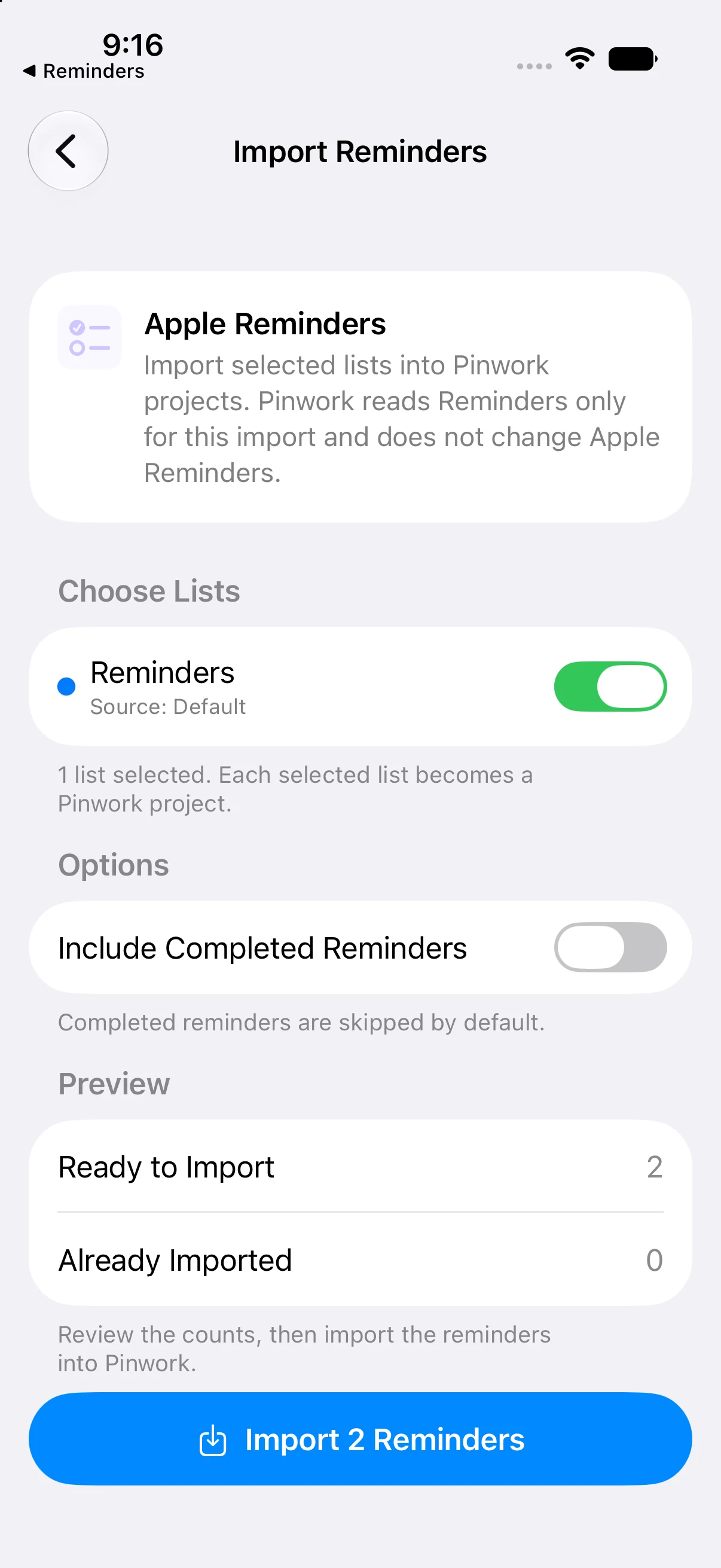
- Select the Reminders lists to import.
- Review the preview.
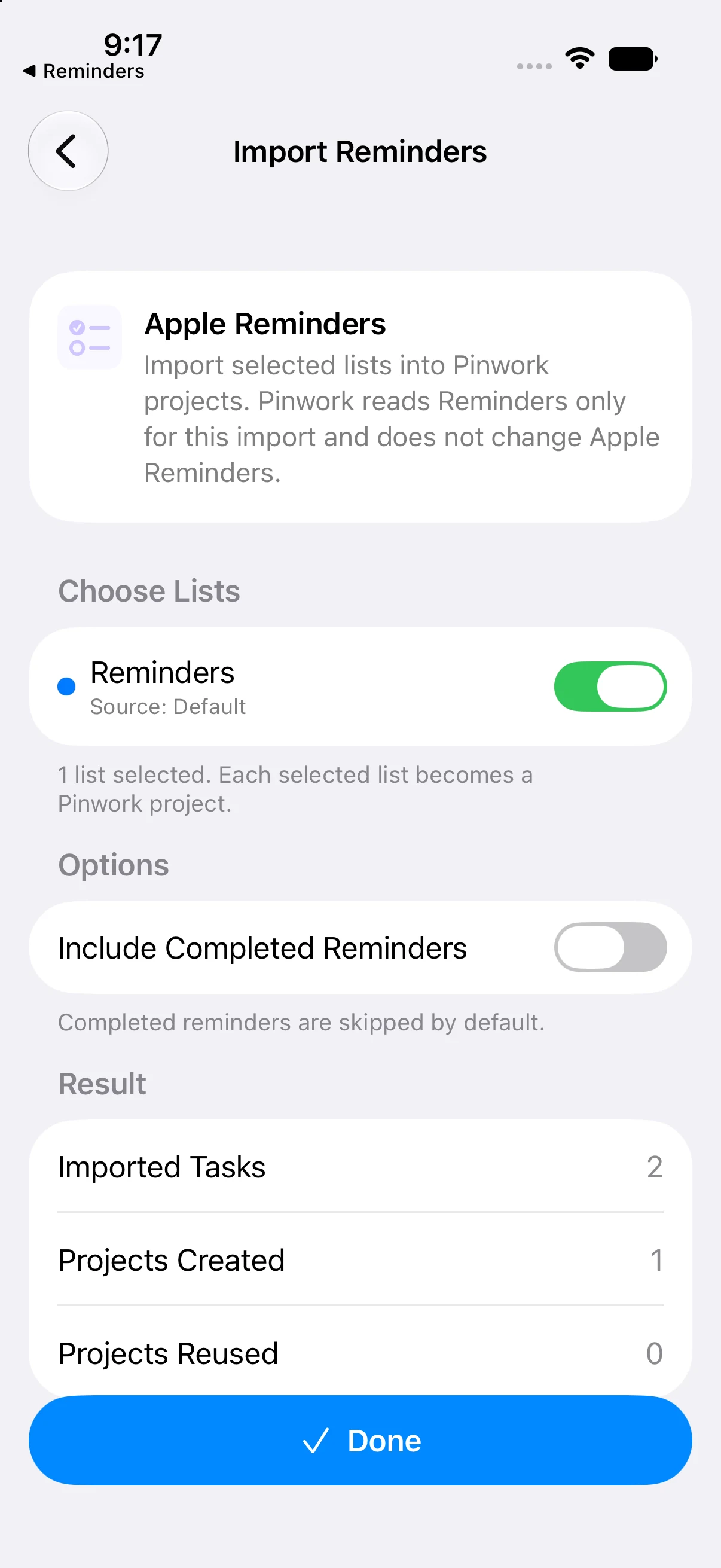
- Choose Import.
The preview changes whenever the selected lists or the completed-reminders option changes. It shows how many reminders can be imported from the current selection, so it is worth checking the count before continuing.
If the preview says there are no new reminders, that does not necessarily mean the selected list is empty. Those reminders may already exist in Pinwork from an earlier import. They may also be completed while Include completed reminders is turned off.
What maps cleanly
The importer preserves the list structure before copying individual task fields. Each selected Apple Reminders list becomes a Pinwork project with the same name. If a project with that name already exists, Pinwork reuses it instead of creating another one.
When Pinwork creates a project for the import, the new project also uses the Reminders list color. Every imported reminder is then placed as a task inside the matching project.
| Apple Reminders | Import behavior | Pinwork result |
|---|---|---|
| List | Create or reuse | Same-named project, with the list color when newly created |
| Reminder | Copy | Task inside the matching project |
| Title | Copy | Task title |
| Notes | Copy | Task notes |
| Start date | Map | When |
| Due date | Map | Deadline |
| Completion | Optional | Completed state and completion date, when included and available |
| Simple recurrence | Map when supported | Recurrence rule on the imported task |
The distinction between When and Deadline matters after the import. A Reminders start date answers when the task is scheduled, so it becomes When. A Reminders due date answers when the task must be finished, so it becomes Deadline. Keeping those fields separate avoids turning a scheduled work date into a due date or treating a due date as the only day when work can begin.
Completion information follows the option chosen before import. With completed reminders excluded, only incomplete reminders are considered. With them included, completed state comes across, along with a completion date when one is available.
What may need review
Not every Apple Reminders setting or metadata field has a Pinwork equivalent. The importer copies the documented task information that maps cleanly, but it does not copy every Apple Reminders-only setting or metadata field. The original reminder remains available in Apple Reminders if a detail needs to be checked later.
Recurrence is the main case that can require attention. Pinwork can map simple recurrence patterns when there is a clear supported equivalent. Its recurring tasks can use daily, weekly, monthly, or yearly intervals, including weekday-specific weekly patterns and optional end conditions.
Some Apple Reminders recurrence rules are more complex than those shapes. Pinwork does not silently simplify the rule, and it does not discard the entire task. It imports the task and adds a review note so the recurrence can be inspected and adjusted deliberately.
That behavior protects the meaning of the schedule. A quiet conversion to a different pattern could cause a task to appear on the wrong days. Dropping the reminder would lose the work itself. Importing the task with a visible note preserves the task while making the unresolved part explicit.
Open any marked task after the import and compare its intended schedule with the original reminder. If the task should repeat in Pinwork, choose an appropriate supported pattern and confirm that it has a When date, since recurrence in Pinwork is based on When. The recurring tasks guide explains the available rules and end conditions.
What happens after import
The imported items are normal Pinwork projects and tasks. They can be edited, scheduled, completed, or reorganized in Pinwork without affecting the originals in Apple Reminders.
The reverse is also true. Editing an original reminder does not update the imported Pinwork task. Completing a task in Pinwork does not complete its Apple Reminders source, and completing the source later does not update Pinwork. There is no ongoing two-way connection to reconcile after the import.
This separation makes the migration reviewable. Start by opening each imported project and checking its task count, When dates, Deadlines, completion state, and any recurrence review notes. Keep the Apple Reminders lists available while checking the result, since Pinwork does not remove or alter them.
Imported tasks are stored in the same way as other Pinwork tasks: locally on the device, with private iCloud sync when iCloud is available. Synced data travels through Apple’s iCloud infrastructure and is not confined to one physical device. Pinwork does not require a separate Pinwork account for that sync.
Once the imported projects look right, the tasks can join the normal Pinwork workflow. Scheduled work appears according to its When date, while the project retains the list structure brought over from Apple Reminders. The getting started guide is the natural next step for learning where projects, Today, Upcoming, and the other main lists fit.
For the exact field mapping, permission recovery, and recurrence limits, continue with the Apple Reminders import guide.