Google Tasks is convenient when a to-do starts in Gmail and ends up in Google Calendar. But a growing personal workload can need more context: which project a task belongs to, what kind of work it involves, how long it will take, and whether it is ready to move forward.
Pinwork gives that work more structure on iPhone, iPad, Mac, and Apple Watch. Type a task with its project, tags, and estimate in one sentence. Keep project notes and status together, filter related work across projects, and use an optional guided review to find the next steps you have not chosen yet.
It also gives Mac users a dedicated app and menu bar capture, with private iCloud sync and no separate Pinwork account.
At a glance
| Pinwork | Google Tasks | |
|---|---|---|
| Capture | Type dates, repeats, estimate, tags, project, and Calendar commands | Enter a task with detail controls, or add one from Gmail |
| Organization | Projects with notes and status; tags on tasks and projects | Lists, subtasks, and starred tasks |
| Finding work | Filters for status, estimate, tags, project, and dates | List sorting and a Starred view |
| Project review | Optional Next Actions, Waiting For, and guided Review | Lists and subtasks for organizing the work |
| On Mac | Dedicated app, menu bar panel, and global quick entry | Google Calendar in a browser, plus Gmail and Calendar side panels |
| Calendar | Linked Apple Calendar events | Tasks and time blocks in Google Calendar |
| Task sync | Private iCloud database; no Pinwork account | Google Account |
| Platforms | iPhone, iPad, Mac, Apple Watch | iPhone, iPad, Android, and the web |
| Price | $4.99 monthly, $34.99 yearly, or $79.99 lifetime | Free |
Type the task with its context
Create a Home project in Pinwork, then type this in Quick Add:
Compare paint samples Saturday ~20min #errands >Home
Pinwork creates Compare paint samples in Home, adds the errands tag, sets a 20-minute
estimate, and plans it for Saturday. The recognized details leave the title. The same input
can handle repeats, a separate deadline, and a command such as add to calendar.
Quick Add works in the app and from the Mac menu bar. Use English for commands such as tomorrow and every Monday. The natural-language guide includes examples you can adapt.
Google Tasks on iPhone documents entering a title and choosing dates through task controls. It also lets a Gmail message become a task from the message menu. Pinwork is useful when ideas arrive while you are doing something else and you want to capture the task and its organization together.
Organize by project and by context
A project groups the work toward an outcome. A tag connects work that has something in common, even when it belongs to different projects.
In Pinwork, a Home project might hold decorating tasks, while a Holiday project holds travel
preparations. Both can contain tasks tagged errands. Open that tag to see related work
together without moving tasks out of their projects. Tasks and projects can each have
multiple tags.
Projects also have notes and a status: Active, On Hold, Completed, or Dropped. You can keep paint colors and room measurements with the project, pause it while waiting for a quote, and return to the same context later. You can pin frequently used projects and tags in the sidebar on Mac and iPad.
Google Tasks organizes work with lists, subtasks, and stars. Pinwork is a useful step up when you want both project context and labels that cross those project boundaries. The projects and tags guides explain how those two forms of organization work together.
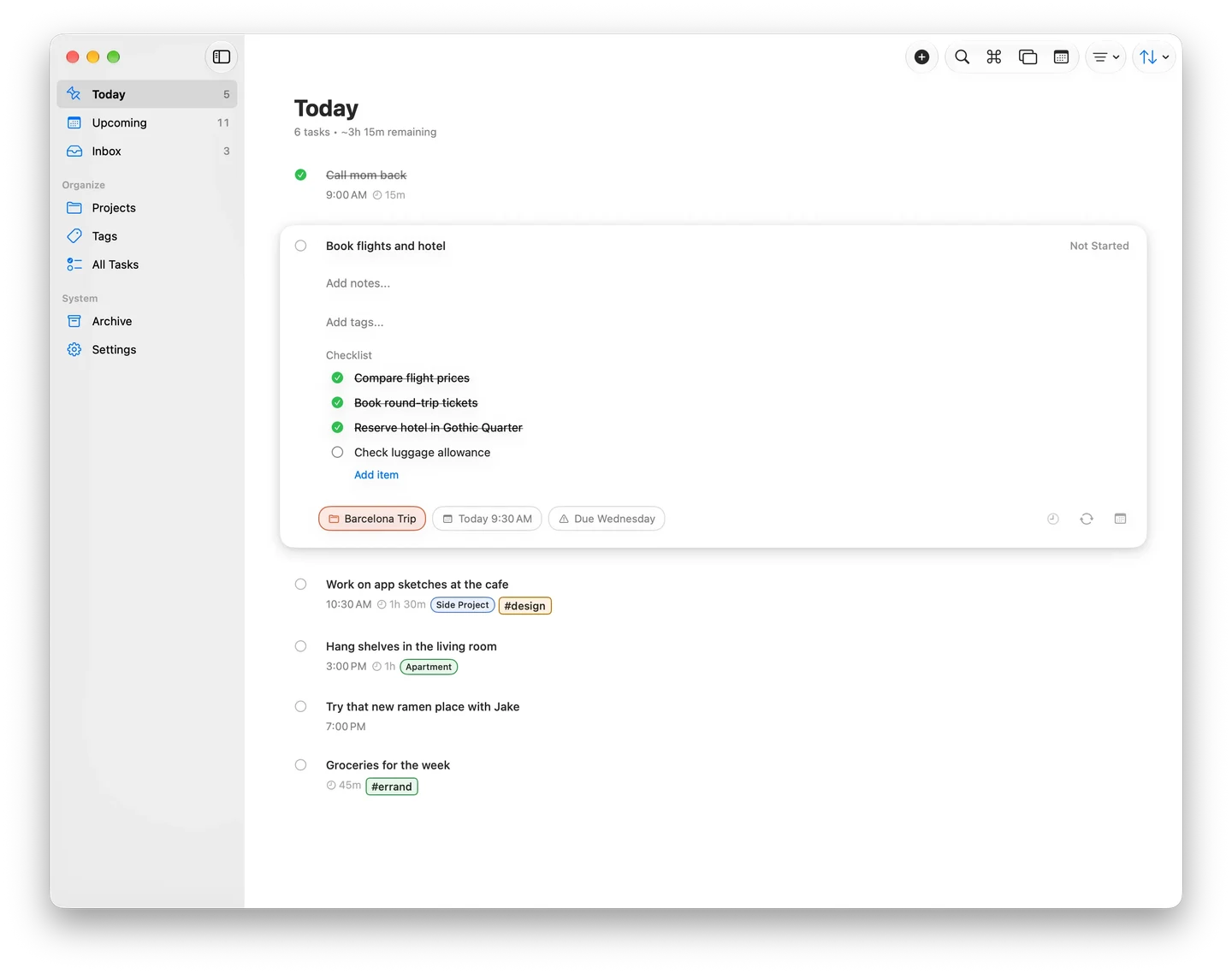
Recurring work can keep its checklist, too. When you complete a recurring Pinwork task, the next occurrence keeps the checklist text and resets the items to unchecked. A weekly admin routine can carry the same steps, project, and tags into next week. Google Tasks does not allow tasks with subtasks to repeat. Pinwork’s recurring checklists are useful when a routine involves several steps.
Find the next task to work on
Pinwork filters can combine a project, a tag, and other criteria such as status or estimate. Sorting by estimate brings shorter tasks to the top when you have a small gap in the day. Each list and project remembers its filter and sort choices on the current device.
There is also a difference between unfinished and blocked. In Progress marks work you have started. Optional GTD (Getting Things Done) mode adds Waiting For for work blocked on someone else and Someday/Maybe for ideas outside the active plan.
For projects that need regular attention, choose a Next Action. The guided Review checks Inbox, active GTD projects without a Next Action, Waiting For, and Someday/Maybe. It helps you spot a project that has plenty of tasks but no clear next step.
Capture from the Mac, iPhone, or your wrist
Pinwork has a dedicated Mac app with a menu bar panel for Quick Add, Today, and Inbox. Global quick entry also works with the menu bar item disabled. You can capture a thought from the keyboard and get back to the work in front of you. The menu bar guide explains both entry points.
On iPhone, Pinwork supports Siri and Shortcuts capture, including Action Button setups that run its Quick Add shortcut. Those shortcuts queue the input for the main app to process. On Apple Watch, you can check Today, Inbox, and Upcoming, capture a task, or mark one complete. Watch capture supports a smaller set of fields than Quick Add on iPhone or Mac.
Google offers Tasks apps for iPhone and iPad. Its Mac workflow uses Google Calendar in a browser and the Gmail and Calendar side panels. Pinwork suits someone who wants personal tasks close at hand throughout their Apple devices, including while the browser is closed.
Use Apple Calendar and act from a reminder
Pinwork can create an Apple Calendar event linked to a task, using When for its planned time and the estimate for the event length. Once the task has a When date, time and title edits can sync between task and event. Full Calendar access is required; if both change before syncing, the task wins.
Google Tasks already supports time blocks in Google Calendar and a separate deadline. Pinwork’s benefit here is the Apple Calendar connection, alongside its capture and organization tools.
For a quick interruption, Pinwork also puts useful actions on the reminder. Enable Task Reminders in Settings, then touch and hold one on iPhone or iPad to complete the task, snooze it for approximately 15 minutes, or defer it a day.
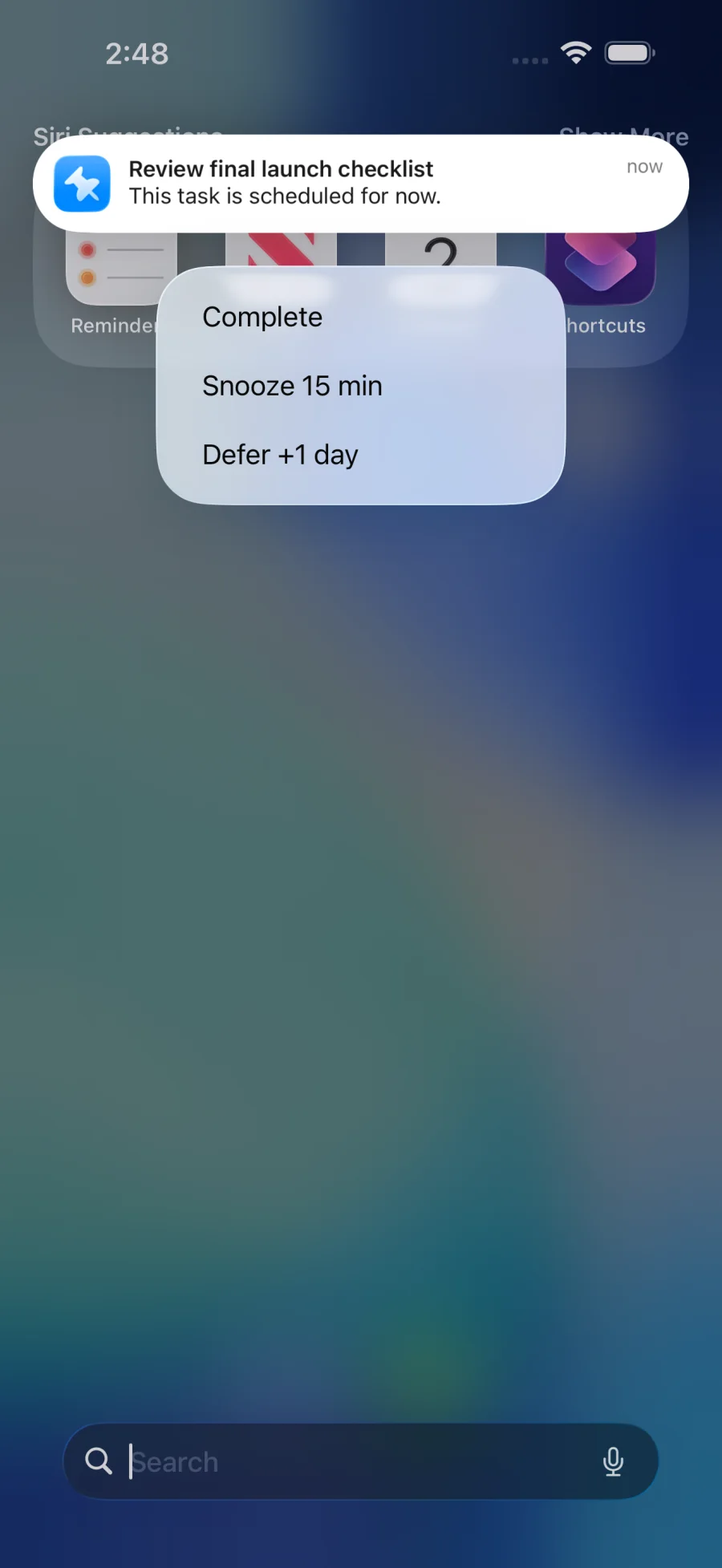
Snooze keeps the original When time. The reminder walkthrough shows how to use these actions.
Keep personal projects in private iCloud
Pinwork stores tasks locally and syncs through your private iCloud database. There is no Pinwork account or Pinwork server holding the task database. You can keep working offline, with changes waiting for iCloud to become available.
Google Tasks stores work with your Google Account. Google says Tasks data is encrypted in transit and at rest and that Tasks content is not used for advertising. Pinwork offers a different home for personal tasks if you prefer iCloud.
Pinwork uses RevenueCat for purchase verification, without sending task titles or notes. The sync and privacy guide explains the distinction.
When the extra structure is worth paying for
Pinwork costs $4.99 monthly, $34.99 yearly, or $79.99 once for lifetime access. All options include the same features on iPhone, iPad, Mac, and Apple Watch using the same App Store Apple Account. Prices shown are US prices.
The case for switching is the combination: organized capture, projects with context, tags across projects, a guided review, and a dedicated Mac app. Google Tasks remains a good fit if Gmail and Google Calendar already cover your needs, or if Android, browser access, and a free app matter most. Pinwork has no shared lists or equivalent Google Workspace connection.
Try adding a few tasks you already need to do. Give one a project, a tag, and an estimate, then find it again from Today or its project. The plans guide explains the 7-day subscription trial and lifetime purchase.