When a task reminder arrives at the wrong moment, touch and hold it and choose Snooze 15 min. Pinwork hides the task temporarily and asks again approximately 15 minutes later, without changing When, Deadline, or recurrence.
This action applies to a notification sent because the task’s When time was reached. The same notification also offers Complete and Defer +1 day. Deadline notifications use their own action set and are not part of this workflow.
Task Reminders are off by default. Enable them in Settings > Notifications before relying on this action.
Use Snooze 15 min when the plan has not changed
Suppose the feed-the-dog reminder fires at 7:00 PM while both hands are full. The task still belongs at 7:00 PM. It does not need a new date, a different recurrence rule, or a later Deadline. It only needs to ask again after the immediate interruption has passed.
The short pause avoids turning an interruption into a scheduling change. The current notification clears, and the task returns after the snooze interval.
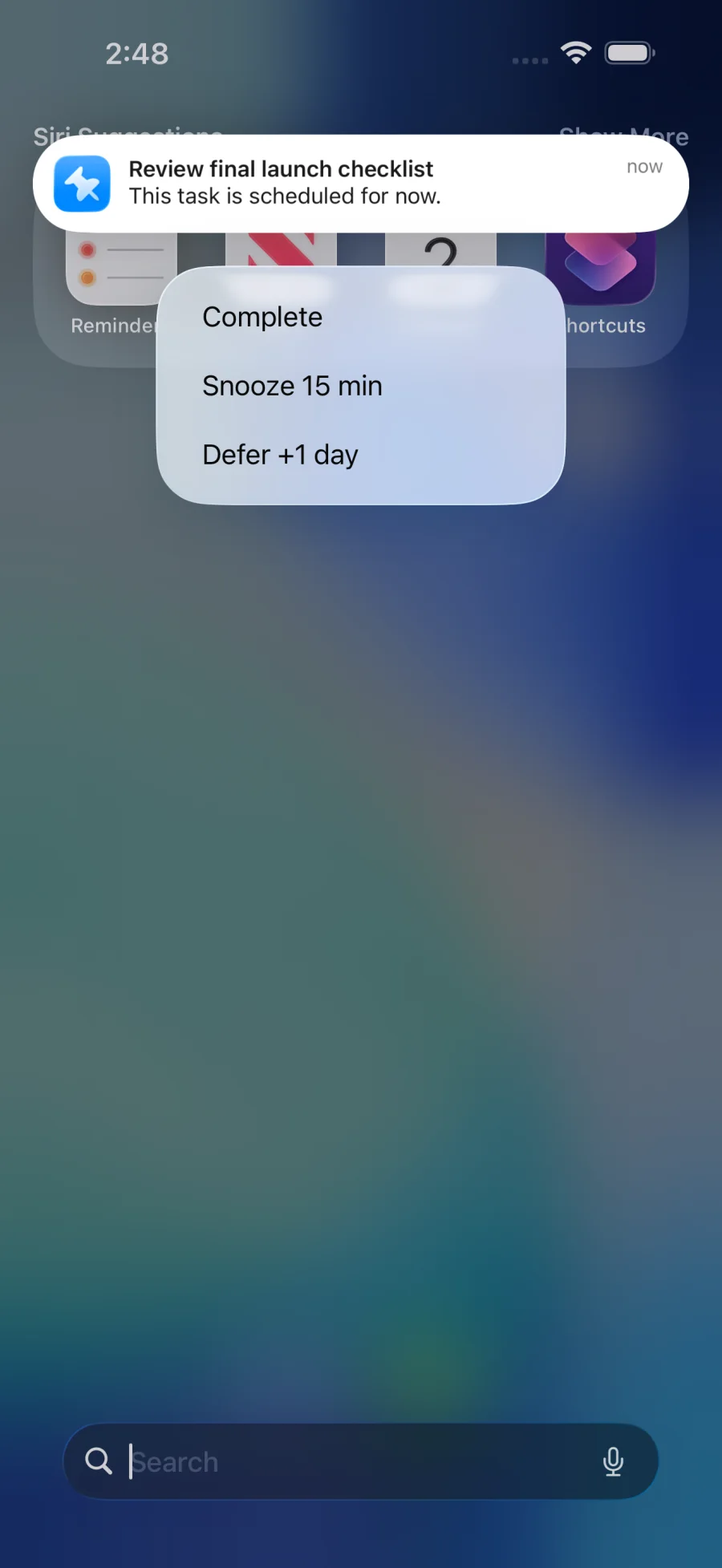
Snoozing hides the task without moving When
When is the day or time planned for the work. Deadline is the last acceptable day or time to finish it. A task can have either one, both, or neither.
The notification action temporarily hides the task and schedules another reminder. It does not edit When or Deadline. The distinction matters because a 15-minute interruption is not necessarily a change to the plan or due date.
Recurrence stays unchanged too. A recurring task still uses its When date to anchor the schedule. Snoozing one notification does not move that occurrence or rewrite the recurrence rule. For a closer look at the two scheduling fields, read When vs Deadline.
| Action | Where | What changes |
|---|---|---|
| Snooze 15 min | When notification | The task hides and the reminder returns in approximately 15 minutes. When stays unchanged. |
| Snooze task | Task context menu | The task is hidden until a chosen time. When stays unchanged. |
| Defer | Swipe or context menu | The task’s When date moves to a later day or time. |
The in-app Snooze menu is a different tool
Pinwork also has an in-app Snooze control for a task that should remain on the same plan but disappear from view until later. Open the task context menu and choose Snooze instead of acting on a notification.
Its options include:
- Until Tonight, 6:00 PM, when that time is still in the future
- Tomorrow Morning, 9:00 AM
- Tomorrow Afternoon, 2:00 PM
Choosing one records a snooze time and temporarily hides the task. It does not change When. After the snooze time passes, the task can appear again in the appropriate list. Normal in-app Snooze actions are undoable when undo is available in the current session.
That task-level Snooze is useful when seeing the task itself is the interruption. The notification action is the shorter option, with a fixed interval of approximately 15 minutes.
Use Defer when the plan has actually changed
Defer is the right choice when the task no longer belongs on its current When date. On iPhone and iPad, a leading swipe can move a task to tomorrow or open the Schedule sheet. The context menu can offer choices such as This Afternoon, Tomorrow, Next Monday, and Pick Custom Date.
Every Defer route changes When. That can move the task out of the current list, because the task now belongs to a different part of the schedule. A custom date is appropriate when none of the suggested times fits.
If the task should disappear for a longer preset period without moving When, use the in-app Snooze menu. If the plan itself moved, use Defer.
The Defer and snooze guide documents the current in-app controls and the scheduling changes each one makes.