
Microsoft To Do is a useful free list, especially when tasks arrive through Outlook. If your work spans several projects, Pinwork helps you keep the notes, tags, and next steps together.
Pinwork combines natural-language capture, projects with notes and status, tags across projects, and an optional guided review. You can organize a task while typing it, find related work without moving it between lists, and check which projects need attention. It runs on iPhone, iPad, Mac, and Apple Watch, with private iCloud sync and no separate Pinwork account.
At a glance
| Pinwork | Microsoft To Do | |
|---|---|---|
| Typed capture | Dates, repeats, estimate, tags, project, and Calendar commands | Smart due-date and reminder suggestions on iPhone |
| Organization | Projects with notes, tags, and status | Lists, list groups, steps, and notes |
| Tags | Separate tags on tasks and projects; typed tokens leave the title | Hashtags in task text, with tag selection and search |
| Finding work | Filters for status, estimate, tags, project, and dates | My Day, Important, Planned, and search |
| Project review | Optional project review with Next Actions | My Day for selecting today’s work |
| Calendar workflow | Create linked Apple Calendar events from tasks | Drag tasks onto the calendar in new Outlook or Outlook on the web |
| Task sync | Private iCloud database; no Pinwork account | Microsoft account and Exchange Online |
| Platforms | iPhone, iPad, Mac, Apple Watch | Apple devices, Windows, Android, and the web |
| Price | $4.99 monthly, $34.99 yearly, or $79.99 lifetime | Free for personal use |
Capture a task and organize it in one sentence
Writing down a task is only part of capturing it. You may also want to choose a project, add tags, and estimate the time. Pinwork lets you do that in the same sentence.
Type this in Quick Add, with a Marketing project already created:
Review launch copy tomorrow ~30min #writing #client >Marketing
Pinwork keeps Review launch copy as the title, plans it for tomorrow, adds a 30-minute
estimate, applies both tags, and puts it in Marketing. You can return to the project later or
find the task alongside writing work from other projects.
The same input supports repeating tasks, a separate deadline, and commands such as add to calendar. Quick Add in the app and the Mac menu bar parse those details immediately. Use
English for commands such as tomorrow and every Monday; the natural-language
guide covers the syntax.
Microsoft To Do also recognizes due dates and reminder times on iPhone. Pinwork’s appeal is the range of details handled together, including the project, tags, and estimate that make the task easier to find and act on later.
Give projects context, and use tags across them
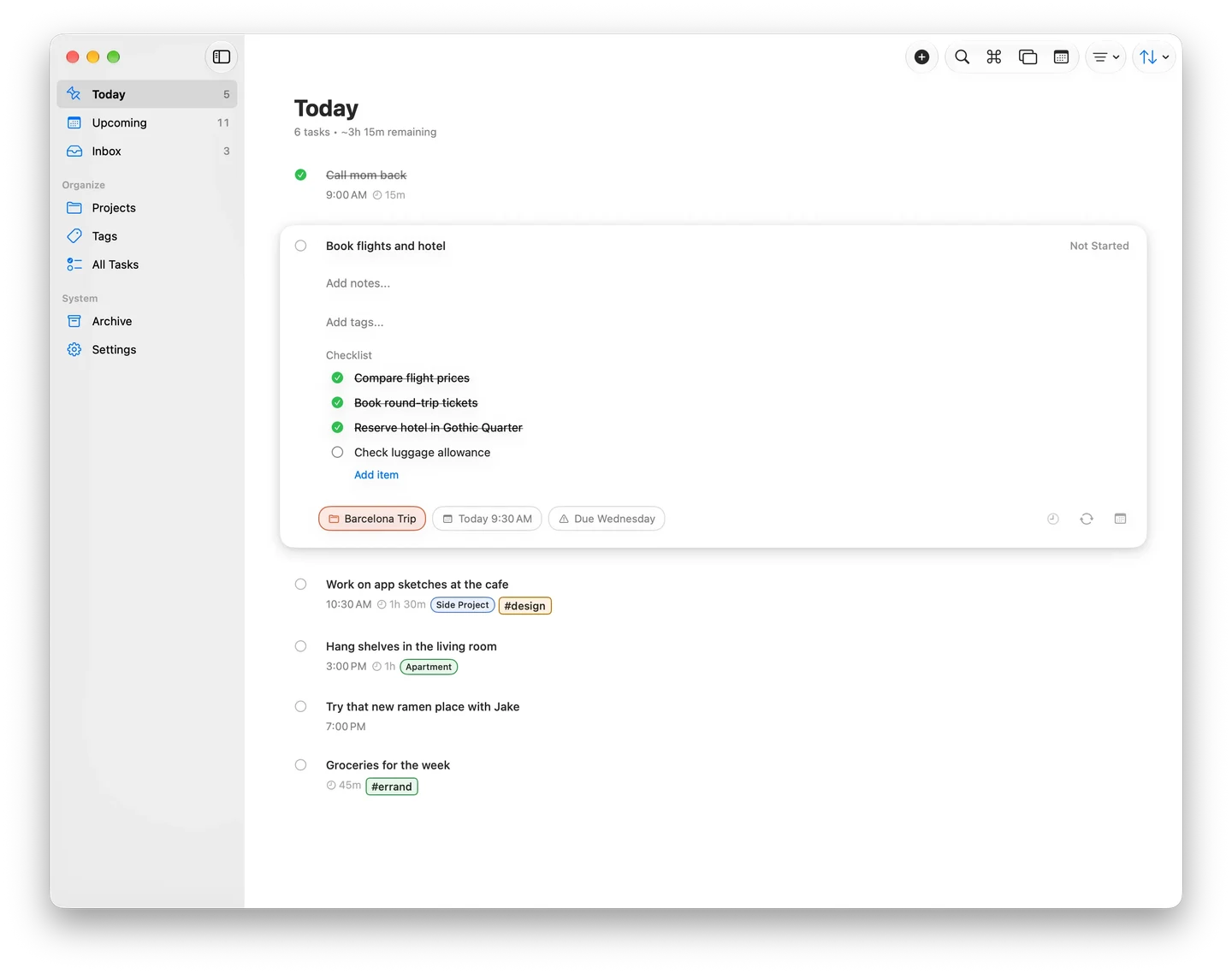
In Pinwork, a project can hold its own notes and tags as well as tasks. It also has a status: Active, On Hold, Completed, or Dropped. A paused client project can stay On Hold with its context intact until the work resumes.
Tags answer a different question. A task can belong to Marketing and carry both writing and
client. A tag page brings together the tasks and projects using that label. You can pin
frequently used projects and tags in the sidebar on Mac and iPad.
Microsoft To Do can organize work into lists and groups, and its hashtags help find tasks across lists. Pinwork adds project-level notes, tags, and status alongside the task list. That is useful when you want to keep the brief, the work, and the state of the project together. The projects guide explains the model.
Find the work you can move forward
A long list mixes tasks you can do now with work already started and work waiting on someone else. Pinwork has an In Progress status, and optional GTD (Getting Things Done) mode adds Waiting For, Someday/Maybe, and Next Actions.
For example, mark a task Waiting while a client reviews it. It stays in Waiting For and is hidden from Today by default. You can follow up without leaving it mixed into the work you can actually do.
The guided Review helps clear Inbox, find active GTD projects without a Next Action, check Waiting For, and reconsider Someday/Maybe. You can see which projects need a next step instead of opening each one to check.
Filters provide another way to narrow the list. Choose a project and a tag, or sort by estimate to see shorter tasks first. Pinwork remembers filter and sort choices separately for each list and project on the current device. The filter guide covers the available combinations.
Microsoft To Do’s My Day is useful for choosing today’s priorities. Pinwork’s Review also checks for projects that have no next step and tasks waiting on someone else. GTD mode is optional, so you can start with projects and tags and enable the review tools when you need them.
Put the work in Apple Calendar
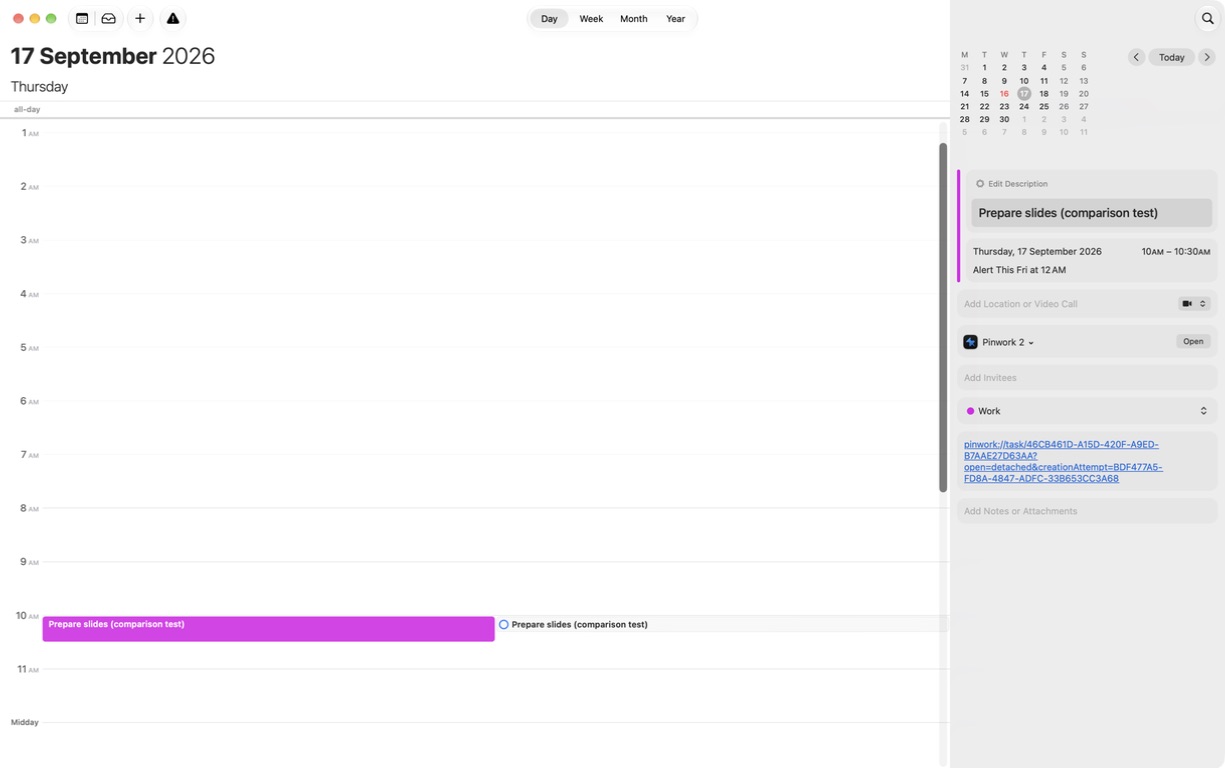
Pinwork can turn a task into a linked Apple Calendar event. The planned When time sets its position, and the estimate sets its length. A separate Deadline keeps the final cutoff visible if you move the work session.
With Full Calendar access, a linked task and event can exchange time and title changes once the task has a When date. If both change before syncing, the task takes precedence. The Calendar guide explains the setup.
Microsoft To Do supports dragging a task onto the calendar in new Outlook or Outlook on the web. Pinwork is useful when Apple Calendar is where you plan your day and you want the task to remain connected to its work session.
Keep personal work in iCloud
Pinwork stores tasks locally and syncs through your private iCloud database. There is no Pinwork login or Pinwork server holding the task database. Creating, editing, and completing tasks can continue offline; changes sync when iCloud becomes available.
Microsoft To Do stores tasks in the Exchange Online mailbox associated with your Microsoft account. That is convenient for Outlook work. Pinwork gives your personal projects a home in the Apple Account you already use.
Purchase verification is separate from task sync. Pinwork uses RevenueCat for purchase and access information, without sending task titles or notes. The sync and privacy guide explains the distinction.
Is it worth paying for the switch?
Pinwork costs $4.99 monthly, $34.99 yearly, or $79.99 once for lifetime access. Every option includes the same features across iPhone, iPad, Mac, and Apple Watch using the same App Store Apple Account. Prices shown are US prices.
Microsoft To Do is free for personal use. The reason to pay for Pinwork is the daily workflow: capture an organized task in one sentence, keep project context together, review what needs a next step, and plan in Apple Calendar.
Keep Microsoft To Do if shared lists, flagged Outlook emails, Planner, or Windows and Android access are essential. Pinwork has no shared lists or Microsoft 365 connection.
Try adding a few tasks you already need to do. Give one a project, a tag, and an estimate, and see how it fits your day. The plans guide explains the 7-day subscription trial and lifetime access.