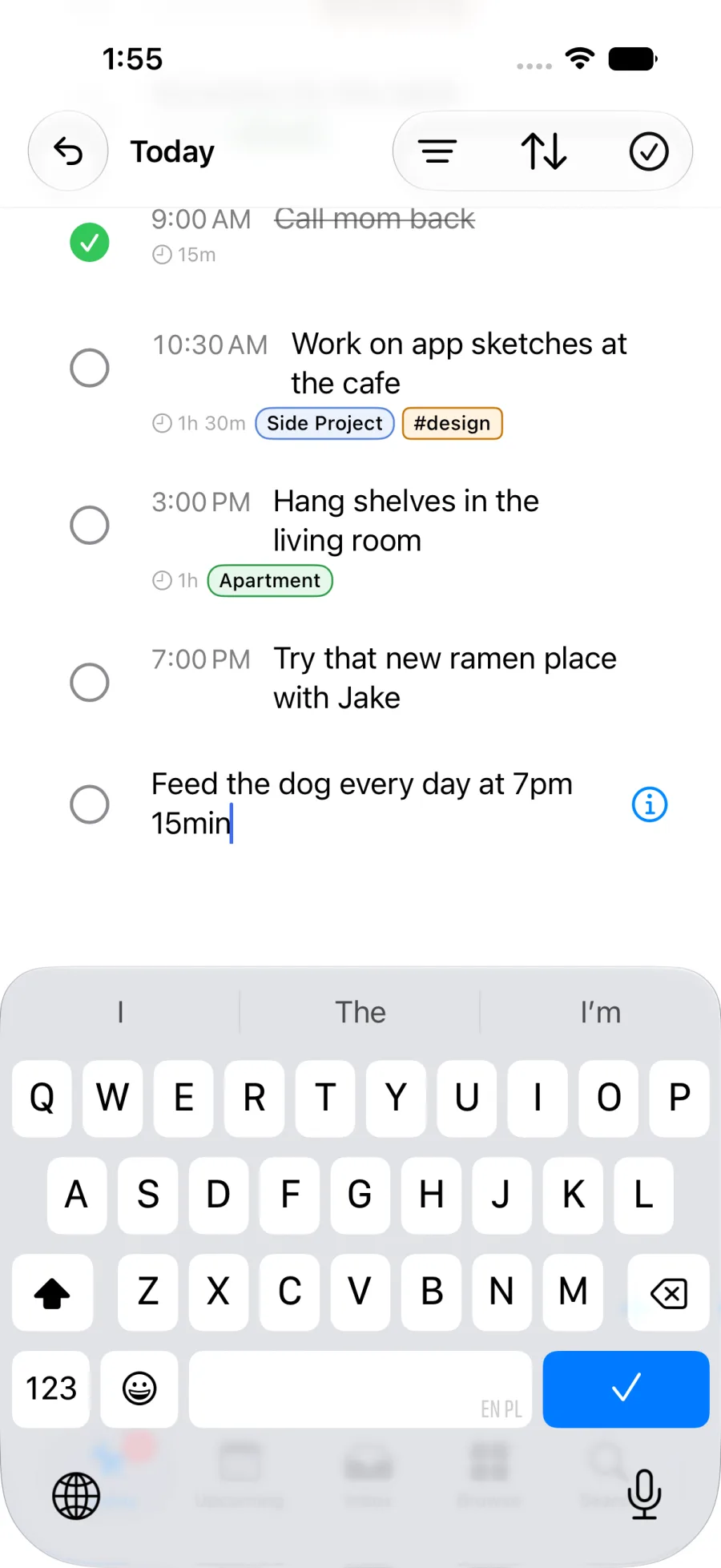
To create a daily recurring task at 7:00 PM with a 15-minute estimate, type this in Pinwork’s in-app Quick Add:
Feed the dog every day at 7pm 15min
Pinwork saves Feed the dog as the title. It uses every day for the
recurrence, at 7pm for the task’s When time, and 15min for the estimate.
The scheduling details become task fields instead of remaining mixed into the
title.
Recurrence Time Estimate
How Pinwork divides the sentence
The sentence reads like one instruction, but it carries four different pieces of information. Pinwork separates the title from three recognized phrases and stores each phrase in the field where it can affect the task.
Feed the dog becomes the title
Words that are not recognized as scheduling metadata remain in the task title.
After the recurrence, time, and estimate phrases are removed, the clean title
is Feed the dog.
This distinction matters after capture. A phrase left in a title is only text. A phrase saved as structured information can determine when a task appears, when it repeats, and how much time has been set aside for it.
every day sets the recurrence
The phrase every day gives the task a daily recurrence rule. Recurrence needs
a When date because Pinwork uses that schedule to calculate the next
occurrence.
Completing the current occurrence marks that task complete. If the recurrence rule still allows another occurrence, Pinwork creates the next task and carries forward useful context, including the title, estimate, project, tags, notes, and recurrence metadata.
at 7pm sets the When time
The phrase at 7pm places 7:00 PM on the task’s When schedule. When is the day
and time planned for the work, so it controls where the task appears in
scheduled views such as Today and Upcoming.
This sentence does not contain a Deadline, so that field stays empty. Deadline is the separate last acceptable day or time to finish something. When a real cutoff exists, a supported Deadline phrase can be included in the sentence, or the value can be added through the Deadline control in task details.
15min sets the estimate
The final phrase becomes a 15-minute estimate. It describes the expected amount of work without changing the recurrence or the When time.
Short duration phrases can use forms such as ~30min, 2h, or 1 hour.
Pinwork removes a recognized estimate phrase from the final title and keeps the
value as the task’s estimate.
For more syntax and parser examples, see the natural-language guide.
What the saved task contains
Saving the sentence produces one task with several fields already filled in. The result is not a title that merely says when to act.
| Field | Saved value | What it controls |
|---|---|---|
| Title | Feed the dog | The action shown in task lists |
| When | 7:00 PM | The scheduled occurrence and time |
| Recurrence | Every day | When another occurrence is created |
| Estimate | 15 minutes | The expected duration of the work |
| Deadline | Not set | A separate real due date, if one exists |
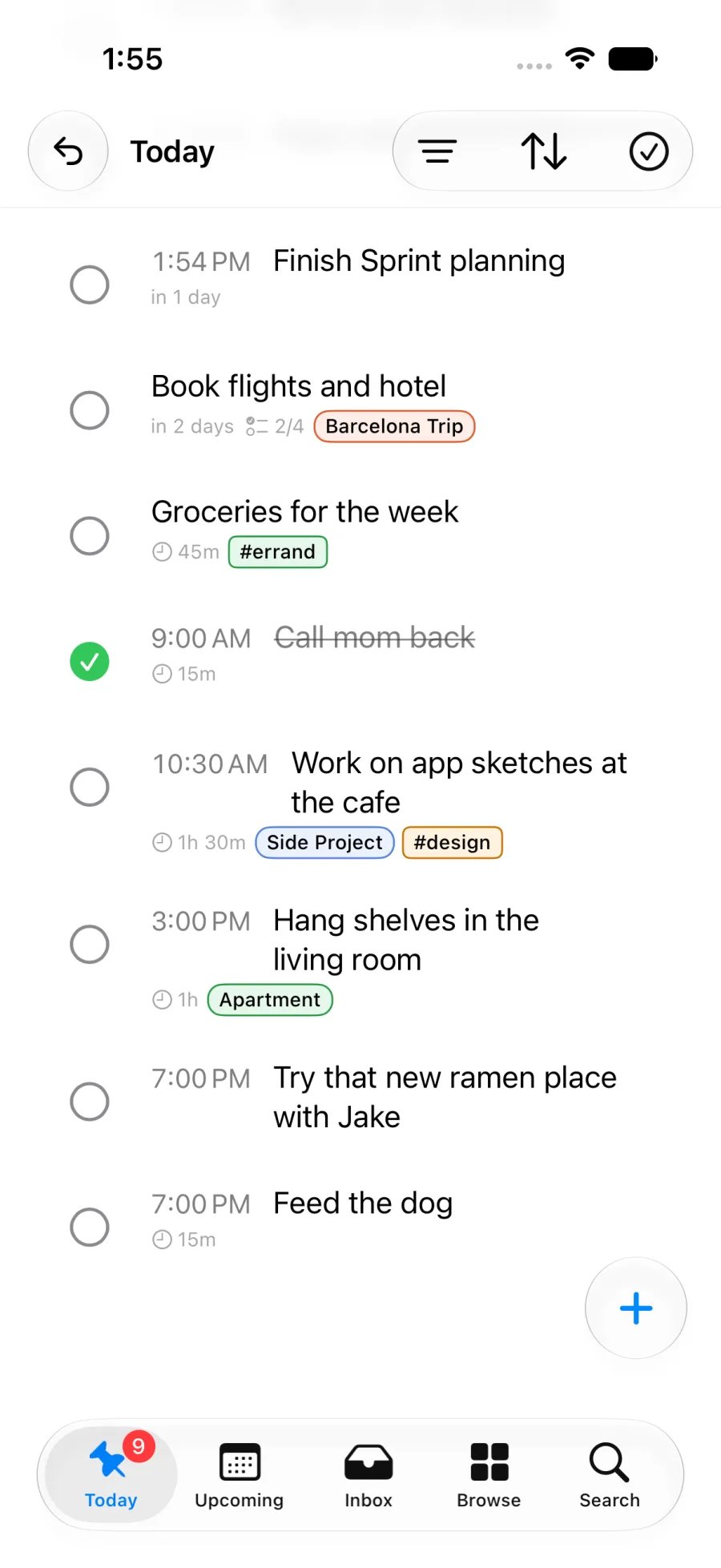
The next occurrence is created when the current task is completed, provided the recurrence has not reached an end date or occurrence limit. Its estimate is preserved. Skipping an occurrence works differently: it advances the same task to the next recurrence date without creating an archived completed instance.
The recurring-tasks guide explains completion, skipping, end conditions, and the details carried into the next occurrence.
The fields remain editable after capture
Natural-language capture is a starting point, not a locked result. Open the task and use its detail controls to change the estimate, When schedule, or recurrence rule. Recurrence can use daily, weekly, monthly, or yearly intervals, and it can end on a date or after a set number of occurrences.
There is one important guardrail when editing the title. A normal rename does not overwrite an existing When date, Deadline, or estimate. It also applies recurrence only when the task is not already recurring. To intentionally change those values, use the corresponding task controls.
Removing When also removes recurrence. A recurring task needs a scheduled date to calculate its next occurrence, so clearing that anchor necessarily clears the recurrence rule.
If only the time changes, edit the When value and leave the recurrence alone. When an occurrence is skipped, Pinwork preserves its explicit time on the next scheduled date.
Variations that work
The same sentence pattern can describe other predictable rhythms. Keep the action first, then add a supported recurrence phrase, time, and estimate.
| Repeat | When and estimate | Example sentence |
|---|---|---|
| Weekdays | 8:00 AM, 30 minutes | Water plants every weekday at 8am ~30min |
| Weekly | 4:00 PM, 1 hour | Review plan every week at 4pm 1 hour |
| Monthly | 9:00 AM, 15 minutes | Submit metrics every month at 9am 15min |
| Yearly | 2:00 PM, 2 hours | Renew certificate every year at 2pm 2h |
Both every day and the commonly typed everyday are recognized as daily
recurrence.
Pinwork also recognizes interval phrases such as every 2 weeks and
every 3 days, along with weekday-specific repeats. More detailed recurrence
rules can be adjusted through the Recurrence control after capture.
Use a capture path that parses the sentence
On iPhone, use in-app Quick Add for this workflow. In-app Quick Add parses dates, times, recurrence, and estimates as the task is created.
Siri, Shortcuts, and Action Button Quick Add can capture the same sentence. They queue it for Pinwork to parse when the main app next processes the request. Use in-app Quick Add for an immediate result. The Share Extension keeps shared text as supplied. Apple Watch capture parses some natural language, but does not apply recurrence or estimate metadata.
Calendar linking is a separate workflow. To add a task occurrence to Apple Calendar while creating it, see add a task to Apple Calendar while creating it.
For the exact phrases supported during parsed capture, continue with the natural-language guide.