Apple Reminders is free, comes with every iPhone, iPad, Mac, and Apple Watch, and handles shared lists, grocery lists, and location alerts well. If those are what you use it for, stay with Reminders. Pinwork is the alternative when your reminders have become personal work to plan: a task you mean to start on Tuesday but must finish by Friday, a task that needs an hour blocked in Apple Calendar, or a list that has grown into a project with notes and next steps.
Pinwork is a to-do app for iPhone, iPad, Mac, and Apple Watch, and one purchase covers all four. Each task can carry two dates: When, the day you plan to work on it, and Deadline, the day it is due. One typed sentence can set both, along with a repeat, a time estimate, tags, and a project. Tasks sync through your private iCloud database, and Pinwork needs no account of its own. When you switch, Pinwork imports the Reminders lists you choose as projects and leaves the originals in Reminders unchanged.
At a glance
| Pinwork | Apple Reminders | |
|---|---|---|
| Dates on a task | When for the planned day and Deadline for the due date, each with an optional time | A due date with an optional time, plus Early Reminder alerts and Urgent alarms |
| Typed entry | When, Deadline, repeat, estimate, tags, project, and a Calendar command in one sentence | Dates, times, and repeats from a typed phrase; # tags in the title on Mac |
| Alerts | A Task Reminder at the planned time, and a Deadline warning with a lead time you choose | Date and time, arriving at or leaving a place, getting in the car, and messaging someone |
| Apple Calendar | Creates a linked event, using the estimate as its length | Scheduled reminders appear in Calendar, where you can create, edit, and complete them |
| Organization | Projects with notes, tags, and status; checklists inside tasks; filters | Lists and groups, sections and columns, subtasks, tags, flags, priorities, and Smart Lists |
| Sharing | Personal tasks; no shared lists | Shared iCloud lists with assigned reminders |
| Sync | Private iCloud database; no Pinwork account | iCloud with your Apple Account |
| Platforms | iPhone, iPad, Mac, Apple Watch | iPhone, iPad, Mac, Apple Watch, Apple Vision Pro, and iCloud on the web |
| Price | $4.99 monthly, $34.99 yearly, or $79.99 lifetime | Free |
Plan the work apart from the due date
In Apple Reminders, the date on a reminder is its due date. Early Reminder adds an alert before it, such as two days ahead, and Urgent sets an alarm for the moment it is due. The Today list gathers reminders scheduled for today along with overdue ones.
Pinwork keeps the plan and the cutoff in separate fields. When is the day, and optionally the time, you plan to work on a task, and it decides whether the task shows in Today, Upcoming, or Inbox. Deadline is when the task is actually due. A task can have either date, both, or neither.
Take a tax form that is due Friday and needs an hour of work. Set When to Tuesday and Deadline to Friday, and the form sits in Today on Tuesday. If Tuesday fills up, move When to Wednesday. Friday stays recorded as the due date.
Alerts follow the same split. Once Task Reminders are on in Settings, Pinwork alerts you at a task’s planned time. Deadline warnings are separate, and you choose in Settings how far ahead of a Deadline they arrive. The When and Deadline guide covers both fields.
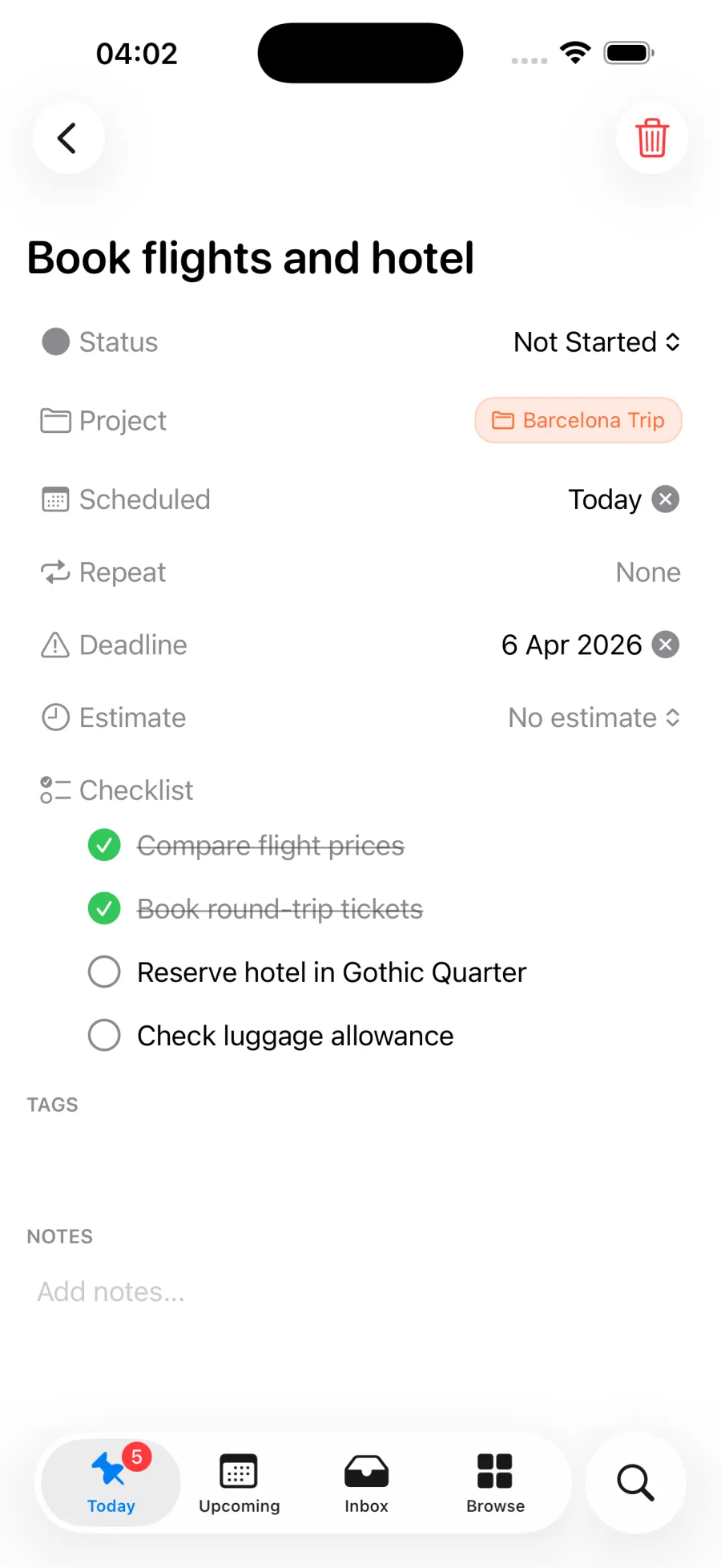
Plan your task in Pinwork Set When to the day you plan to work and Deadline to the day it is due.
Type the whole task in one sentence
Reminders reads dates from typed text. On Mac, typing a phrase such as “Pay bills on Saturday” into a new reminder brings up a suggested date to click, and a word after # in the title becomes a tag. With Apple Intelligence on supported Macs and iPhones, Reminders can also work out the date, time, and repeat from a typed description.
In Pinwork, one sentence sets the planned day, the deadline, an estimate, tags, and a project. With a Home project already created, type this in Quick Add:
Prepare tax documents tomorrow at 9am ~1h by next Monday at 5pm #admin >Home
Pinwork saves Prepare tax documents in Home with the admin tag and a one-hour
estimate. When is tomorrow at 9:00 AM, and the Deadline is next Monday at 5:00 PM. The
recognized details leave the title. The same sentence can also carry a repeat such as
every Monday or a command such as add to calendar.
Quick Add parses the sentence right away in the app and from the Mac menu bar. Siri, Shortcuts, and Action Button capture hand the sentence to the main app, which parses it afterward. Use English for commands such as tomorrow and every Monday. The typed capture guide lists every supported phrase.
Give the task an hour in Apple Calendar
Reminders shows up in Apple Calendar too. Turn on Scheduled Reminders in Calendar, and reminders with a time appear at that time, while all-day reminders sit at the top. You can create, edit, and complete reminders from Calendar.
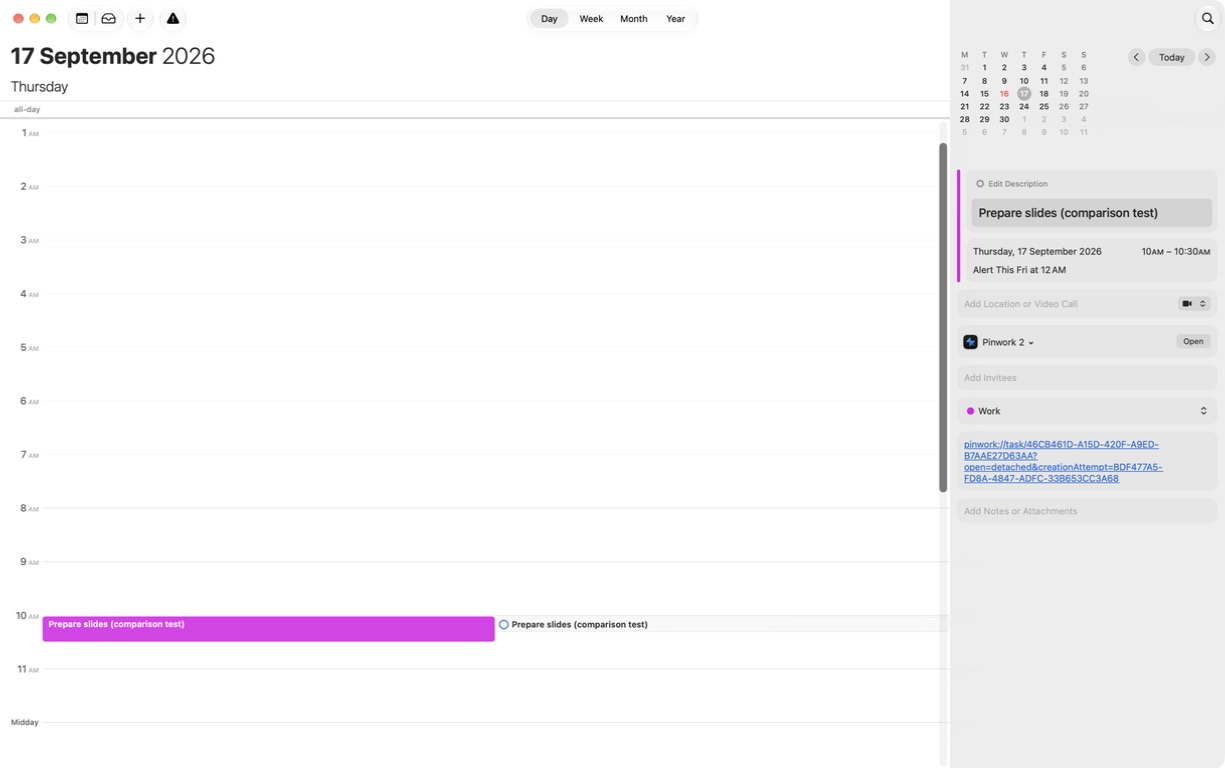
Pinwork creates an Apple Calendar event linked to the task. When sets the start of the
event, the estimate sets its length, and the Deadline can become an alarm on it. Type
add to calendar in the sentence, or choose Add to Calendar from the task’s
Calendar menu.
Once the task has a When date, edits to its title, notes, and time sync in both directions. If both sides change before a sync, the task wins. Pinwork needs full Calendar access for this, and the Calendar guide covers the setup.
Turn a list into a project
Reminders has plenty of organization: lists in groups, sections that can show as columns, subtasks, tags, flags, priorities, and Smart Lists that filter by tags, dates, locations, flags, and priority. With Apple Intelligence, Auto-Categorize sorts a list into sections.
Pinwork adds projects for work that has an outcome. A project holds its own notes and tags
beside its tasks, and it has a status: Active, On Hold, Completed, or Dropped. A
renovation can sit On Hold while you wait for quotes, with the room measurements still
in its notes. Tags work across projects, so an errands tag can collect tasks from Home
and Travel without moving them. Each task can also hold a checklist for its steps.
Filters narrow a list by status, estimate, tags, project, and dates. Sorting by estimate brings the short tasks to the top when you have twenty minutes free. GTD mode is optional; turn it on in Settings to add Next Actions, Waiting For, Someday/Maybe, and a guided Review that points out active projects without a next step.
Bring your Reminders lists with you
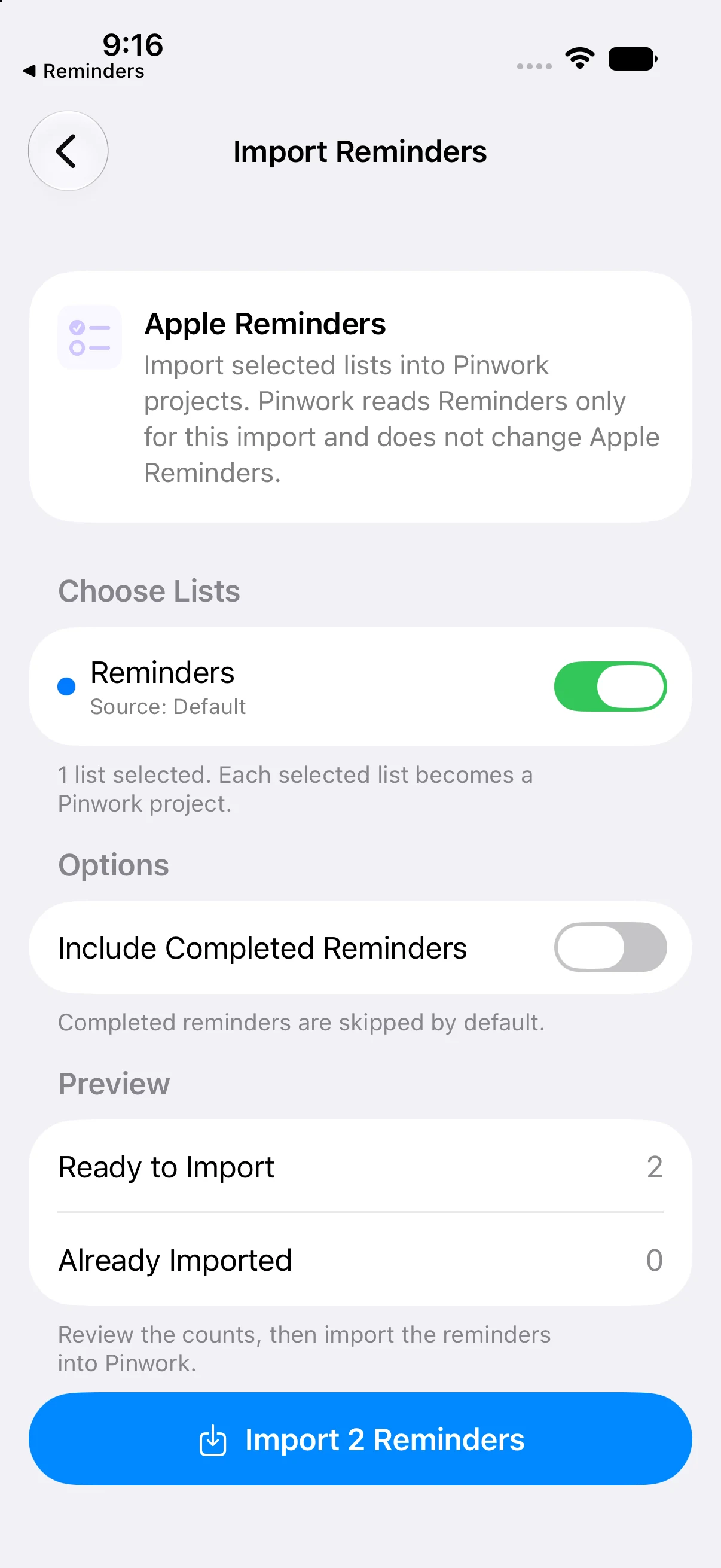
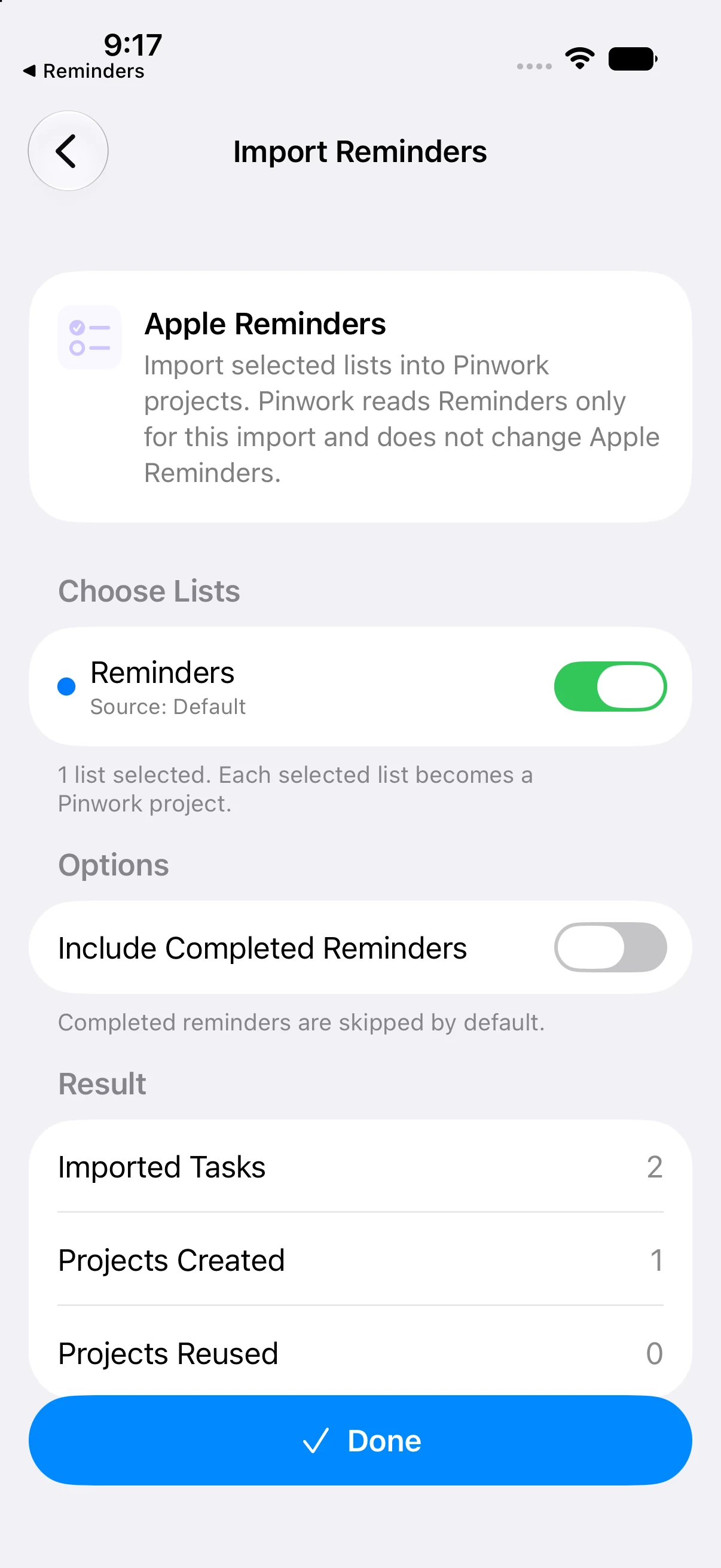
Pinwork imports Apple Reminders on iPhone, iPad, and Mac. Open Settings, then Calendar. On iPhone and iPad, choose Import from Apple Reminders; on Mac, click Import next to Reminders lists. Allow Reminders access, pick the lists, check the preview count, and import.
Each list becomes a Pinwork project with the same name. If an Active or On Hold project already has that name, the reminders join it; a Completed or Dropped project with that name is left alone, and the import creates a new project. A new project takes the list’s color. Every reminder brings its title and notes. Its due date becomes the Deadline, and a start date, when the reminder has one, becomes When. Simple repeats carry over. A repeat that Pinwork cannot match exactly arrives without the repeat and with a note asking you to review it.
Completed reminders stay behind unless you turn on Include Completed Reminders. Running the import again later skips reminders that already came across, so you can move one list at a time. Flags, priorities, tags, locations, and images are not part of the import.
The import is one-way. Pinwork reads Reminders and changes nothing there, and the two apps do not sync afterward, so a shared grocery list can stay in Reminders while your personal projects move to Pinwork. After the import, open each project and give a When day to the tasks you plan to start before their Deadline. The import walkthrough shows each screen.
What it costs
Apple Reminders is free. Pinwork costs $4.99 monthly, $34.99 yearly, or $79.99 once for lifetime access, and every option covers iPhone, iPad, Mac, and Apple Watch on the same App Store Apple Account. Prices shown are US prices.
Eligible new subscribers get a 7-day free trial on the monthly and yearly plans. Without active access, your tasks stay visible in read-only recovery and edits are blocked until access returns. The plans guide explains each option.
Who should stay with Reminders
Keep Apple Reminders if any of these matter more than the planning tools above:
- Shared lists where family members or colleagues add, complete, and assign reminders.
- Alerts tied to a place, such as arriving home or getting in the car, or a reminder the next time you message someone.
- Grocery lists that sort items into categories automatically.
- Access from a Windows PC through iCloud on the web.
- A free app with nothing to buy.
Pinwork is a personal task app. It has no shared lists, and its alerts are time-based.
Switch when you want tasks planned ahead of their due dates, estimates with room in your calendar, and projects with notes and a status. Start by importing one list you use every week, give a few tasks a When day ahead of their Deadline, and check Today the next morning.