“Prepare slides on Thursday morning. They need to be finished by Friday. Set aside half an hour.”
That is one task, but it asks your to-do app to remember three different things: when you plan to work, when the work is due, and how long it should take.
For turning a task sentence into a plan and a linked Apple Calendar time block, Pinwork is our pick in this comparison. It saves the planned time, deadline and estimate together, then uses those task details to create an event through its built-in Send to Calendar action.
Todoist Pro also captures both dates and a duration in one entry. Pinwork’s advantage here is the direct task-to-event workflow in Apple Calendar, not exclusive support for natural-language input or separate deadlines.
One task, three planning decisions
The example was Prepare slides (comparison test), with:
- Planned work: September 17, 2026 at 10:00.
- Deadline: September 18.
- Estimate: 30 minutes.
- Calendar goal: see the task in the day’s schedule and establish whether it reserves a 30-minute event block.
Those details belong in separate fields. Writing “30 minutes” in a note does not reserve half an hour, and setting Friday as the only date does not tell you to start on Thursday.
How the workflows differ
| App | Dates and duration | Calendar workflow |
|---|---|---|
| Pinwork | Planned time, separate deadline, estimate | Create a linked Apple Calendar event |
| Apple Reminders | Schedule a reminder for a date and time | Show the reminder in Apple Calendar |
| Todoist | Date and time; deadline and duration on Pro/Business | Google/Outlook sync; Apple Calendar through a subscription feed |
| Things 3 | Start date, reminder time, separate deadline | Display events in Things; separate Shortcut for time blocking |
The distinction in the last column matters. Seeing a task at 10:00 is useful, but it does not necessarily give it an end time of 10:30.
Pinwork: capture the plan, then create the event
In Pinwork’s new-task field, we entered:
Prepare slides (comparison test) September 17 at 10am by September 18 30minAfter saving and reopening, the title was just “Prepare slides (comparison test)”. The planned time, Friday deadline and 30-minute estimate were saved in their own fields. There was no need to copy those details out of a note.
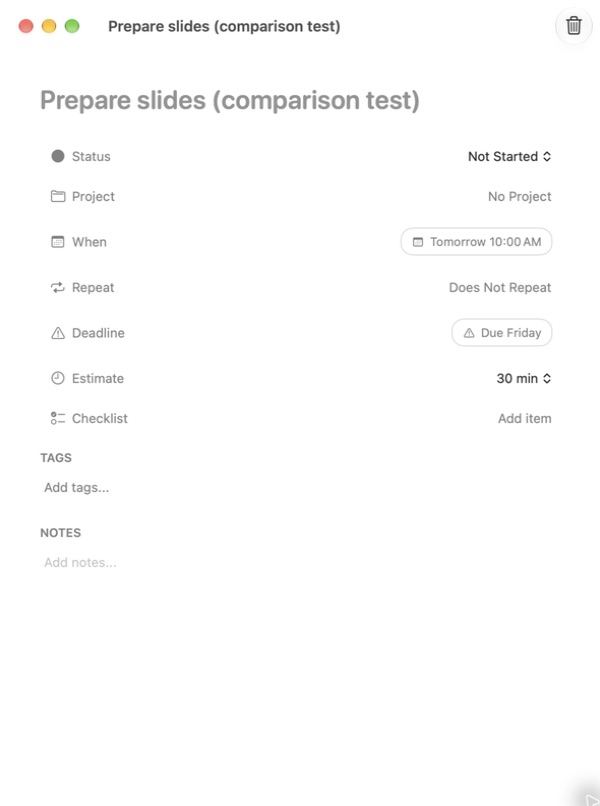
Next, we opened Send to Calendar and confirmed creation. Apple Calendar showed a linked event from 10:00 to 10:30, using the task’s planned time and estimate. No retyping the title or rebuilding the schedule in Calendar. The deadline stayed on Friday, separate from Thursday’s work block.
This is the useful part of the workflow: capture a plan while it is in your head, then turn its time and estimate into a calendar block. The natural-language guide explains the input syntax.
Apple Reminders: a scheduled task can already appear in Calendar
We saved the same title with September 17 at 10:00 using Reminders’ native date and time controls, then checked the saved result.
Reminders also offers natural-language date suggestions. You can accept a suggested date while typing or choose it from the task’s date and time controls.
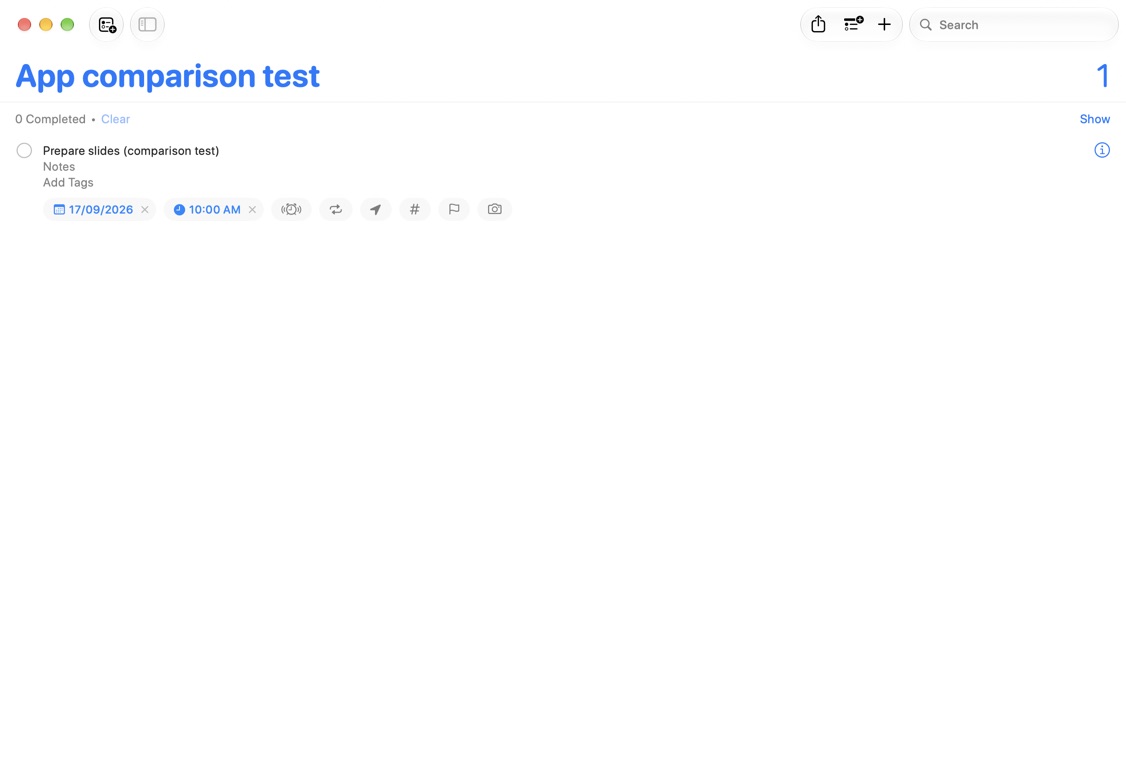
With Scheduled Reminders enabled, the task also appeared at 10:00 in Apple Calendar. It remained a reminder, not a separate 30-minute event.
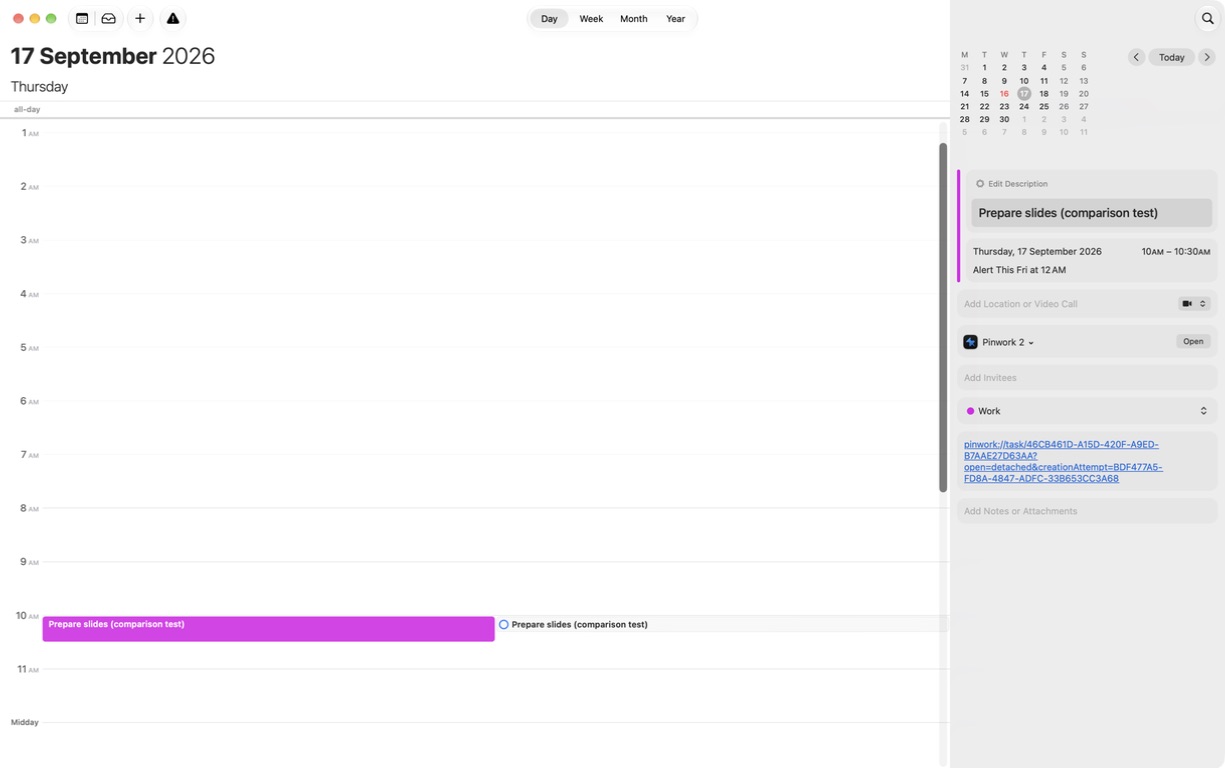
Pinwork’s advantage over this Reminders workflow: the 30-minute estimate became an event with a start and end time, while the task kept a separate Friday deadline. Reminders is enough if you only need a dated to-do beside your appointments; Pinwork fits the more detailed plan shown here.
Todoist: plan the work separately from the deadline
Todoist’s task date answers “When will I work on this?” Its separate deadline answers “When must it be finished?” For the slides, that means Thursday morning for the work and Friday for the cutoff.
In Todoist Pro’s English web app, we entered:
Prepare slides (comparison test) September 17 at 10am for 30m {September 18}After saving, reloading and reopening the task, its date showed September 17, 10:00 to 10:30, with September 18 in the separate Deadline field. The title kept only the task name. Separate deadlines and task duration require Pro or Business.
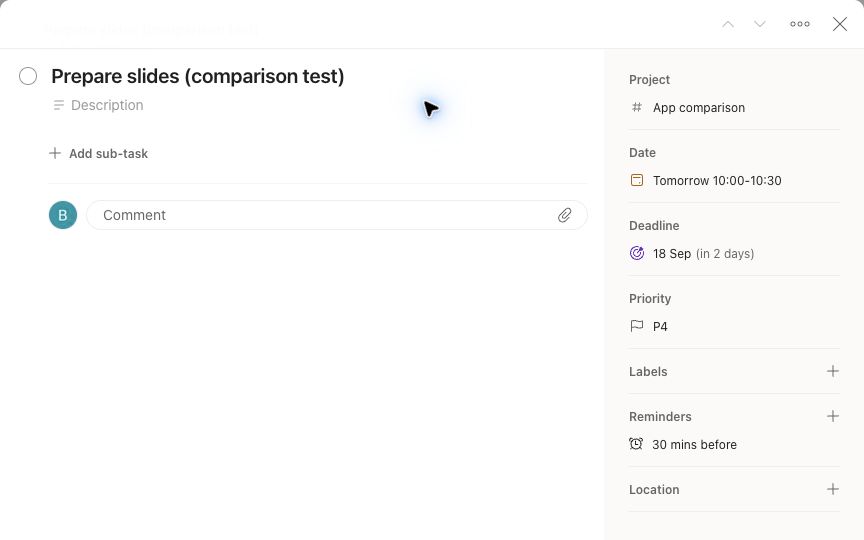
Todoist’s Google and Outlook integration can sync scheduled tasks on all plans. Apple Calendar can also display Todoist tasks through a subscription feed, including their durations. That is a subscribed calendar whose refresh timing depends on the calendar app, rather than Pinwork’s built-in action creating an event in your chosen calendar in Apple’s Calendar app.
Pinwork’s advantage is direct event creation from the task. Todoist Pro matches the one-entry capture result here; choose between them based on the calendar workflow, not a claim that Todoist cannot handle the same task details.
Things 3: separate dates, with a different capture workflow
Things distinguishes When, the day you plan to start, from Deadline, the day you must finish. In the iPhone example below, the saved slides task appears under September 17 in Upcoming, with a 10:00 reminder and a separate September 18 deadline. You can see when to start without losing the final cutoff.
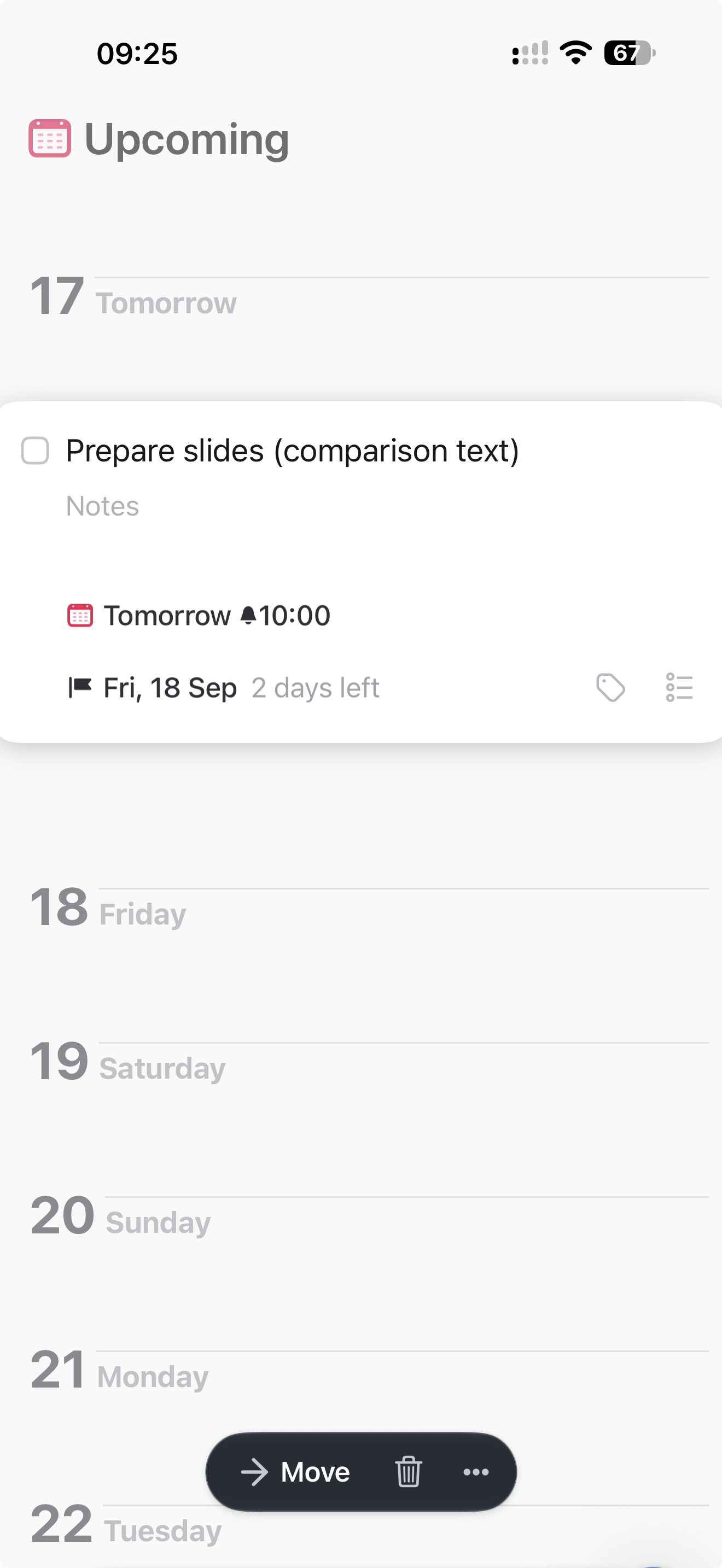
Its Calendar integration displays Apple Calendar events beside tasks in Today and Upcoming. It does not directly send to-dos to Calendar through that integration. Cultured Code provides a separate Apple Shortcut for time blocking.
Pinwork’s advantage over Things for this workflow: an estimate becomes an Apple Calendar event through a built-in task action. Things handles the start date and deadline well, but its route to a time block uses a separate Shortcut rather than its Calendar display integration.
When is Pinwork the better fit?
Choose Pinwork when you want to capture a planned time, deadline and estimate together, then create a linked Apple Calendar event without re-entering them. The slides example shows the full result: work Thursday from 10:00 to 10:30, keep Friday as the deadline, and retain the task alongside its calendar block.
Choose Reminders for a scheduled to-do beside appointments, Things for start-date and deadline planning with events in view, or Todoist for a Google/Outlook-connected workflow. For the direct Apple Calendar workflow demonstrated here, Pinwork brings capture, planning and event creation together.
To try the Pinwork workflow, start with planned dates versus deadlines, then send a task to Calendar.