When a task comes to mind halfway through something else, you want to get it down and carry on. Pinwork’s Raycast extension lets you capture the task with its project, tags, and time estimate in one line. Later, you can find it, read its notes, or mark it complete from Raycast.
Pinwork is a task app for Mac, iPhone, iPad, and Apple Watch. The Raycast extension works with the Mac app, using the same tasks and projects you already keep in Pinwork. Here is how to set it up and take a task from a quick thought to a finished job.
Set up Pinwork in Raycast
- Install Pinwork on your Mac, open it, and finish the initial setup.
- Install the Pinwork extension from the Raycast Store.
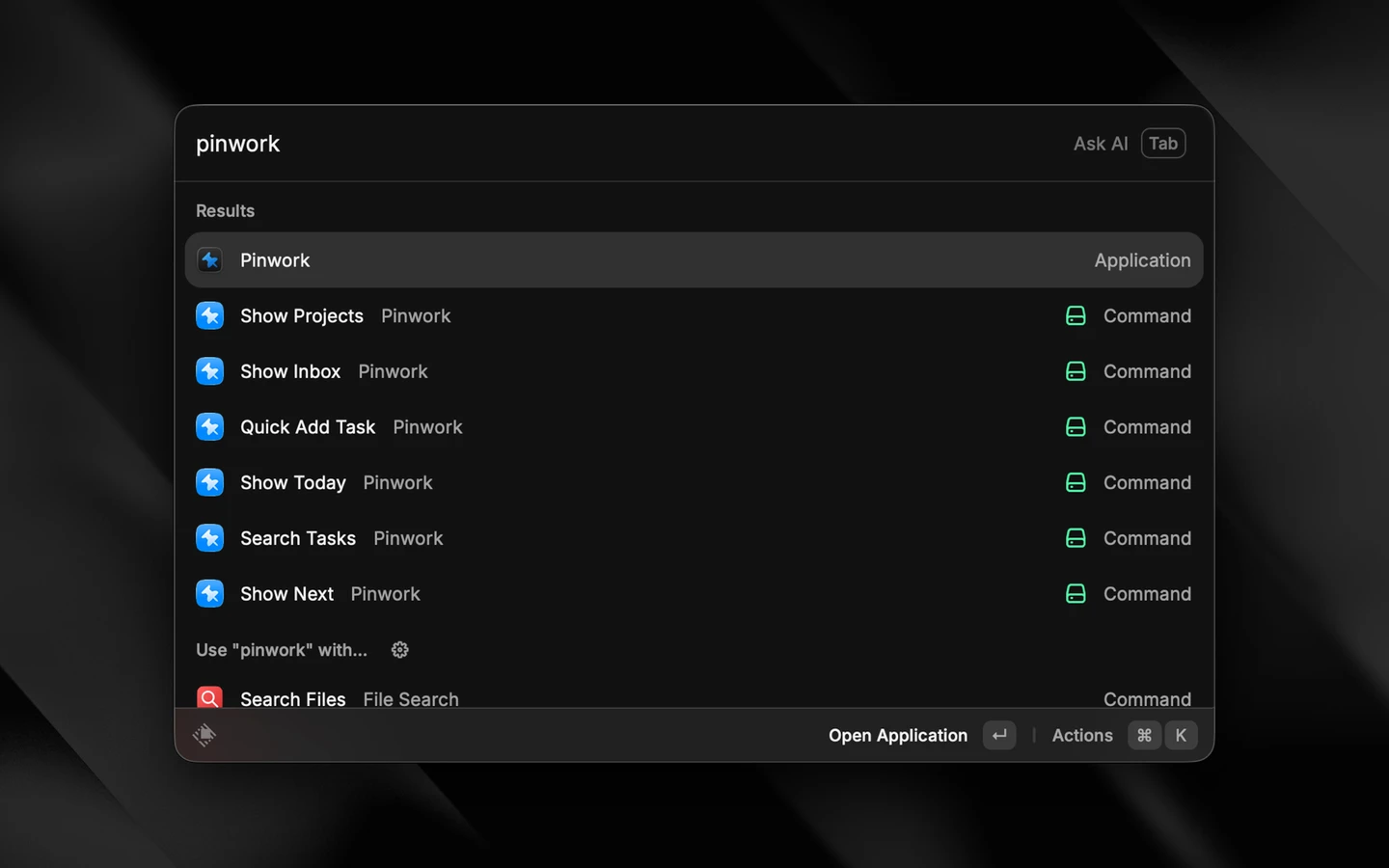
- Open Raycast and search for Pinwork. Its six extension commands appear alongside the app.
- Choose Show Today or Show Inbox to load your tasks. Keep Pinwork running while using the extension.
If macOS asks for permission for Raycast to control Pinwork, allow it so the extension can read your tasks. The extension connects to the installed app; there is no separate Pinwork account or API key to enter.
Pinwork costs $4.99 monthly, $34.99 yearly, or $79.99 once for lifetime access at US prices. Subscription plans include a 7-day free trial. One purchase covers the supported Apple devices using the same App Store Apple Account. See the plans guide.
Capture a task with its details already set
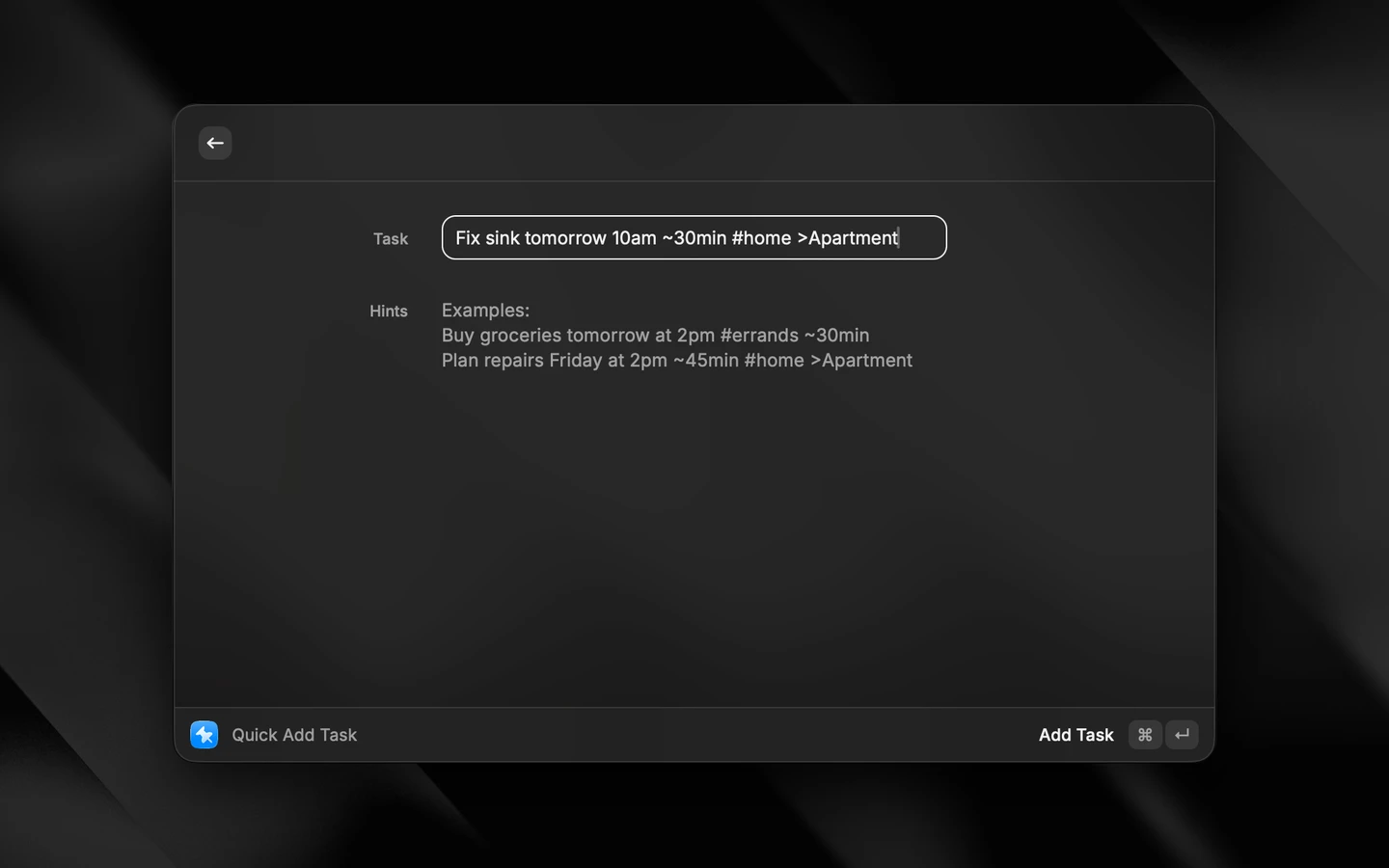
Choose Quick Add Task. For this example, first create an Apartment project in Pinwork, then enter:
Fix sink tomorrow 10am ~30min #home >Apartment
Choose Add Task. Pinwork reads the sentence and saves:
| What you typed | What Pinwork sets |
|---|---|
Fix sink | Task title |
tomorrow 10am | Tomorrow at 10:00 AM |
~30min | A 30-minute estimate |
#home | The home tag |
>Apartment | The existing Apartment project |
You have captured the job and filed it where you will look for it later. The title stays Fix sink, with the recognized details stored in their own fields.
Quick Add also understands repeating tasks and a separate deadline. For example,
Send invoice every Monday #admin captures a recurring task with a tag. Adding
add to calendar can create a linked Apple Calendar event when Calendar access is available.
Use English for commands such as tomorrow and every Monday. A project name must match
an existing project; if it does not, Pinwork leaves that part of the text in the title.
The natural-language guide covers quoted project names and more examples.
Find the task when you need it
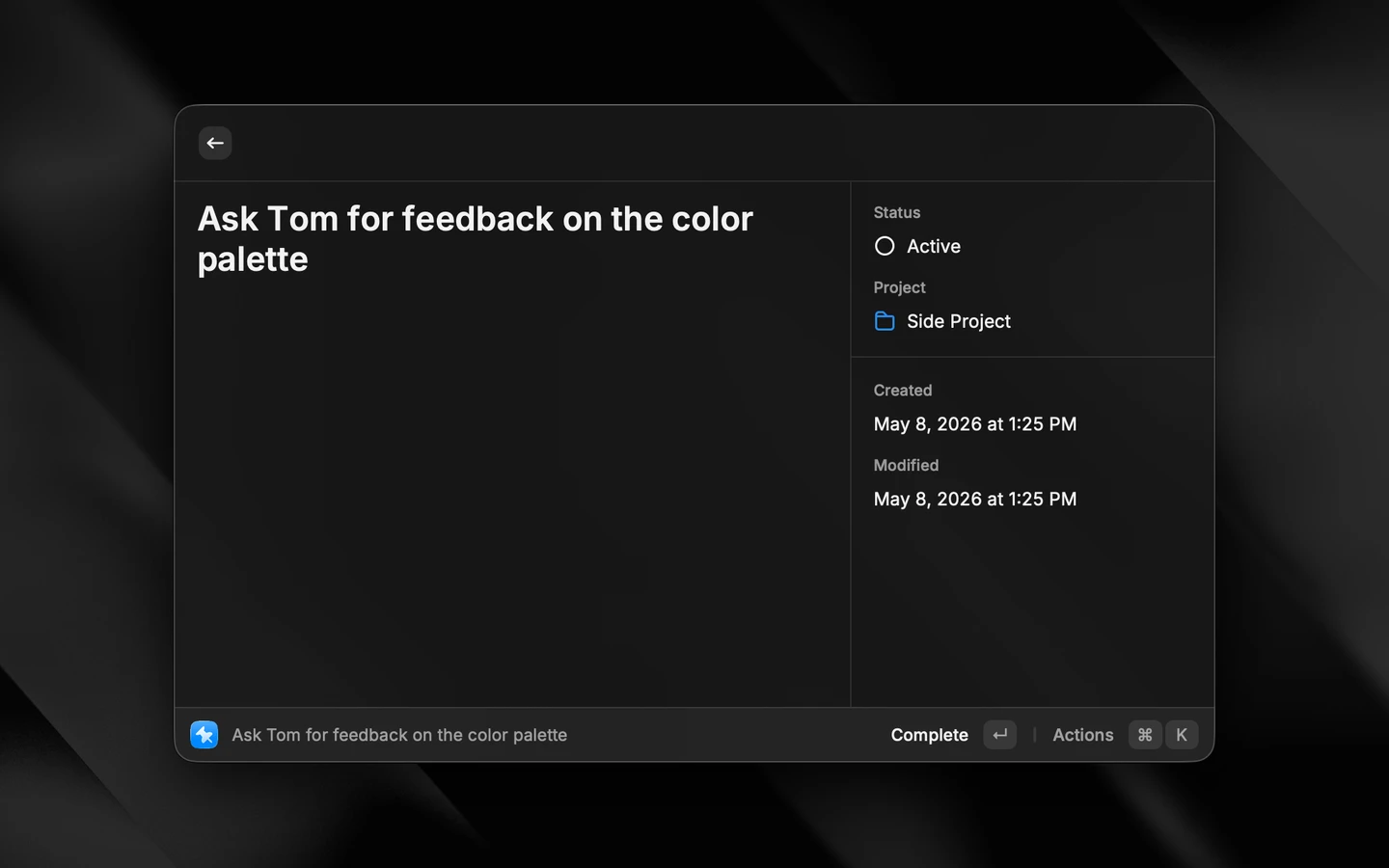
Open Search Tasks and search for Fix sink. Select the result and choose Show Details to see its notes and fields, including its project, tags, and estimate. You can check what the job involves before deciding whether to work on it now.
The list commands give you another route back:
| Command | Use it to |
|---|---|
| Show Today | Check tasks scheduled for today |
| Show Inbox | Process tasks that have no scheduled date |
| Show Next | Look through upcoming tasks |
| Search Tasks | Find a task without remembering which list contains it |
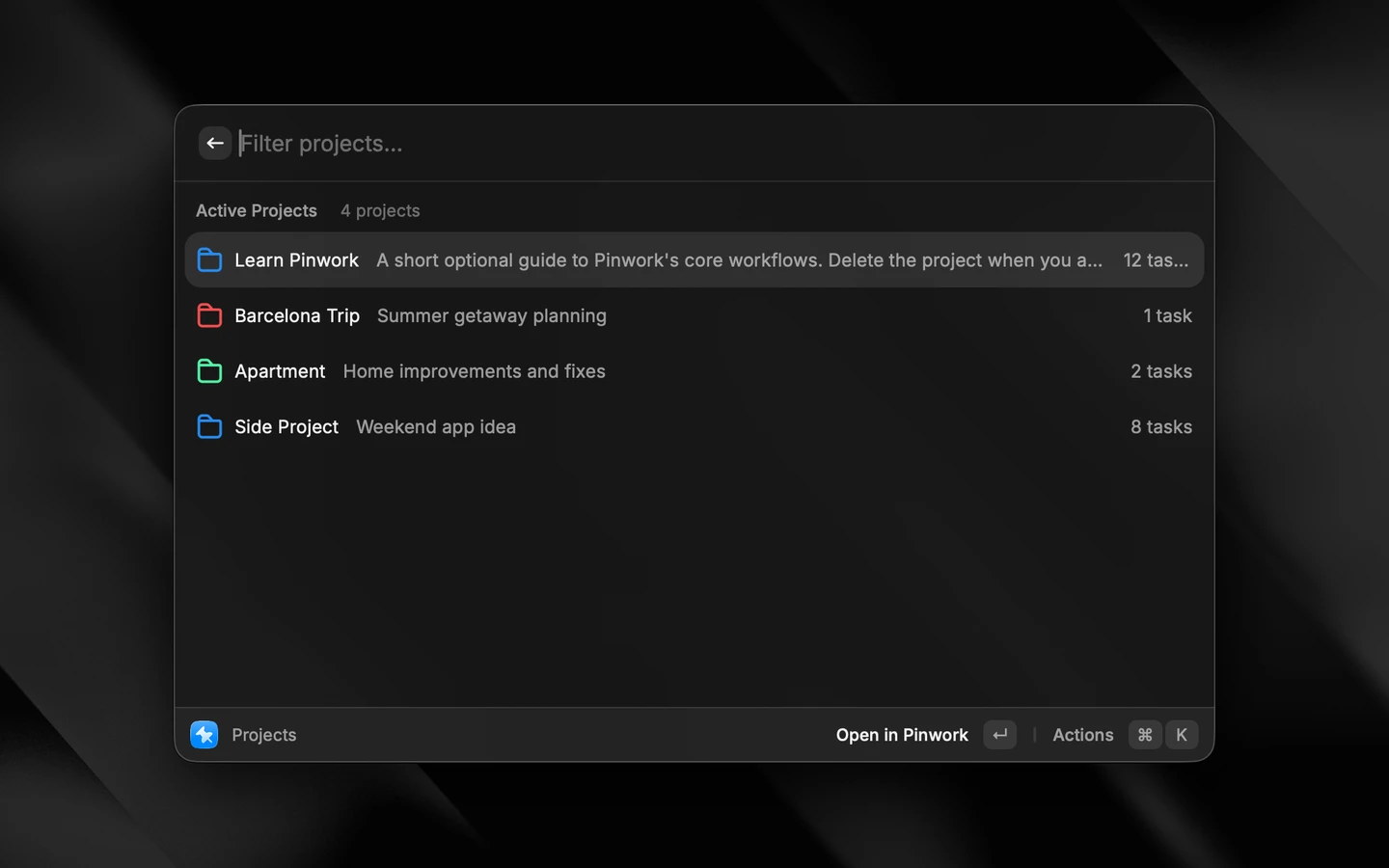
| Show Projects | Browse projects, see task counts, and open a project in Pinwork |
For the sink task planned for tomorrow, Show Next is the useful list. On the day you planned it for, use Show Today. Search remains available if you want to find it directly.
Search Tasks also has a scope picker for All Tasks, Today, Inbox, and Archive. If a result seems missing, check that the selected scope includes the task you are looking for.
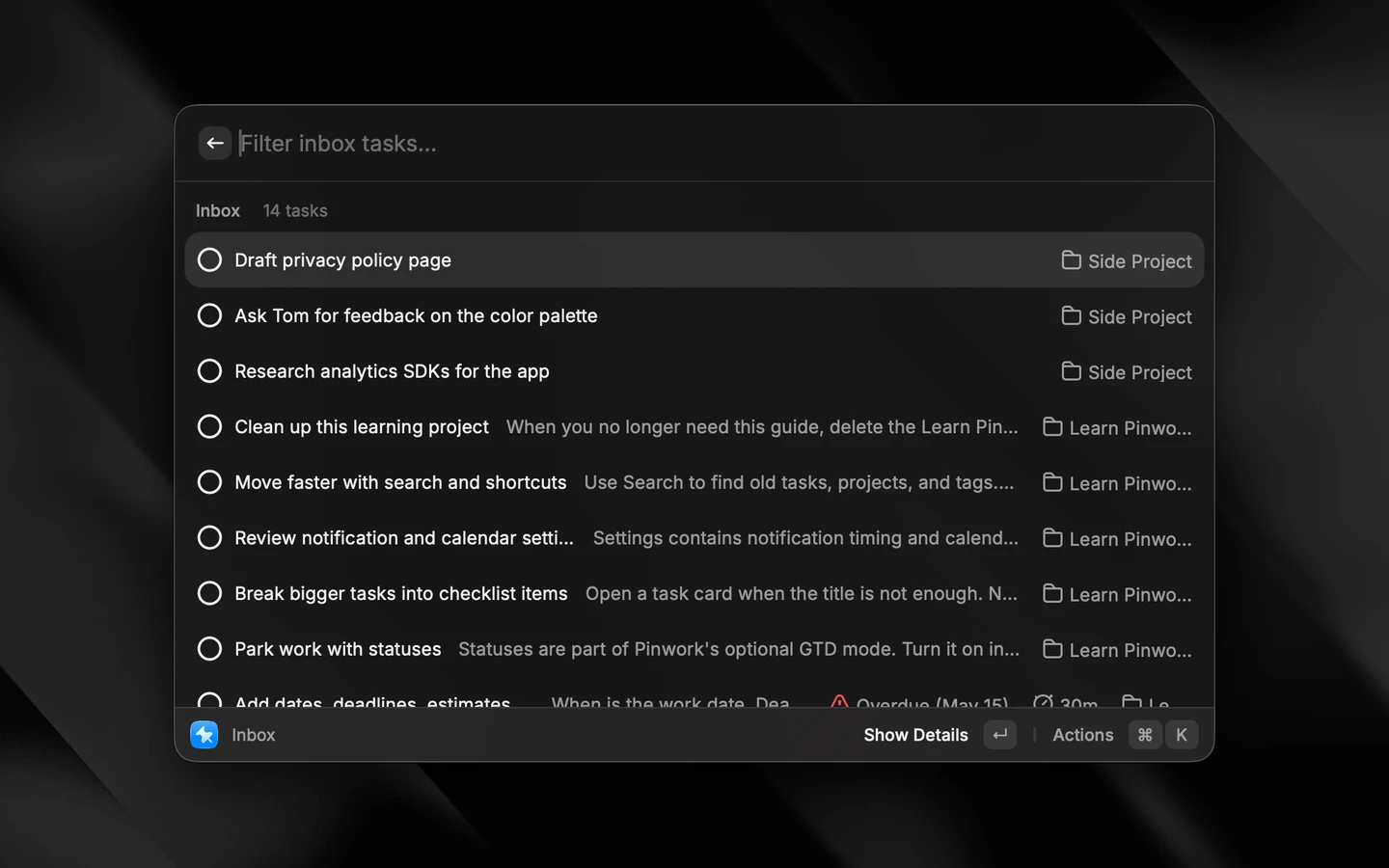
Complete the task or move it to another day
When the job is finished, select the task and choose Complete from its Actions menu. You can also press Command + Return. If you completed it by mistake, Mark Incomplete reopens it when the completed task is visible. The extension’s Show Completed Tasks preference includes recently completed tasks in list views.
If the job needs to wait, use a Defer action from the task list. The extension offers Today, Tomorrow, Next Week, and Someday. For a simple change of plan, choose Defer to Tomorrow. This changes the task’s planned date; it does not mark the task complete.
The task list also offers Archive and Delete. Use those deliberately: deleting a task removes it from Pinwork, and the extension asks you to confirm before sending that request.
A few shortcuts worth remembering
These shortcuts apply when a task is selected in an extension list:
| Shortcut | Action |
|---|---|
| Command + D | Show task details |
| Command + Return | Complete, or mark incomplete |
| Command + O | Open the task in Pinwork |
| Command + C | Copy the task title |
Use Open in Pinwork when you want to edit the full task, change its project, or work through a checklist.
Browse your projects
Open Show Projects to see your projects with their descriptions and task counts. Filter by name to find Apartment, then choose Open in Pinwork to work on the project in the app.
How the extension connects to Pinwork
The extension reads task and project information from the Mac app through AppleScript.
Capture and task changes use Pinwork’s own pinwork:// links, handing the request to the app.
That is why Pinwork needs to be installed and running.
The task is part of your normal Pinwork list. Pinwork syncs that list through your private iCloud database so it can reach your other Apple devices. Sync timing depends on iCloud.
For custom automations, the deep-link guide covers opening lists, capturing tasks, and task actions. The AppleScript guide documents the commands for reading and working with your data.
If a command cannot find your tasks
- Pinwork Not Installed: install and open the Mac app before retrying.
- Pinwork Not Running: open Pinwork, then retry the command in Raycast.
- Unable to Load Tasks: check any macOS automation-permission prompt, then use Retry.
- A recent change is missing: reopen the list or use Refresh where available after Pinwork has processed the request.
- Tasks are visible but changes are blocked: check your Pinwork access. Without an active trial, subscription, or lifetime purchase, the app keeps existing tasks visible in read-only recovery.
Start with Quick Add Task and Show Today. Capture something you need to do, find it again, and mark it complete when you are done. Those two commands are enough to make Pinwork part of the way you already use Raycast.